How to Remove Text From an Image (Captions, Dates, Stickers, Emoji)
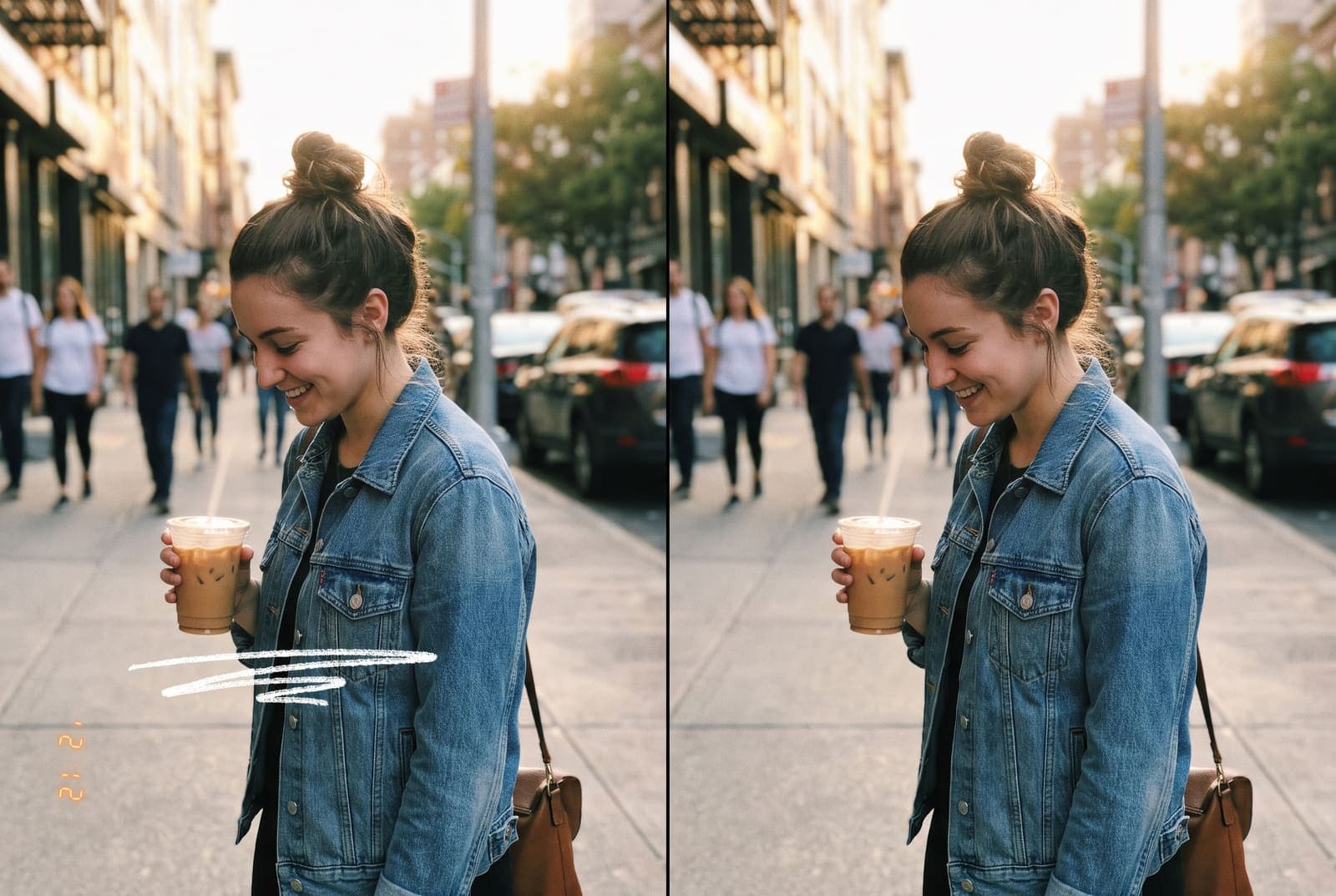
Table of Contents
Text gets stuck on photos all the time. A caption you added in a hurry, a date stamp from a scanned print, a sticker from a story, a sign that steals the shot. If you no longer have the original file, you need a way to take the words out and make the picture look whole again.
This guide covers how to remove text from an image, what the tool is actually doing, and how to get a clean result on busy backgrounds.
Remove text from your image, free in your browser
Try it freeWhat happens when you erase text
Text is flattened into the pixels of the picture. There is no hidden layer to delete. To remove it, an AI tool does three things:
- It finds the letters, either automatically with text detection or from the area you paint.
- It deletes those pixels.
- It generates new pixels that match the surroundings, a process called inpainting.
So the background behind the text is never recovered. It is rebuilt from clues around it. That is why plain backgrounds look perfect and detailed ones need more care.
Remove text step by step
- Open the Text Remover. Upload your photo or screenshot.
- Let it scan. The tool locates the words in the image, so you do not have to trace every letter by hand.
- Check what it found. If a caption, sticker or small word was missed, paint over it with the brush.
- Erase and review. Zoom in on the area where the text was. Look at edges, patterns and grain.
- Fix leftovers. Faint outlines or shadows from the letters often remain. Paint a little bigger than the text and run it again.
- Download the result. Keep the original in case you need to retry.
For anything that is not text, such as a sign, a poster or a stray object, use the object remover, which works the same way but lets you paint over anything.
What you can take out
Captions and overlays
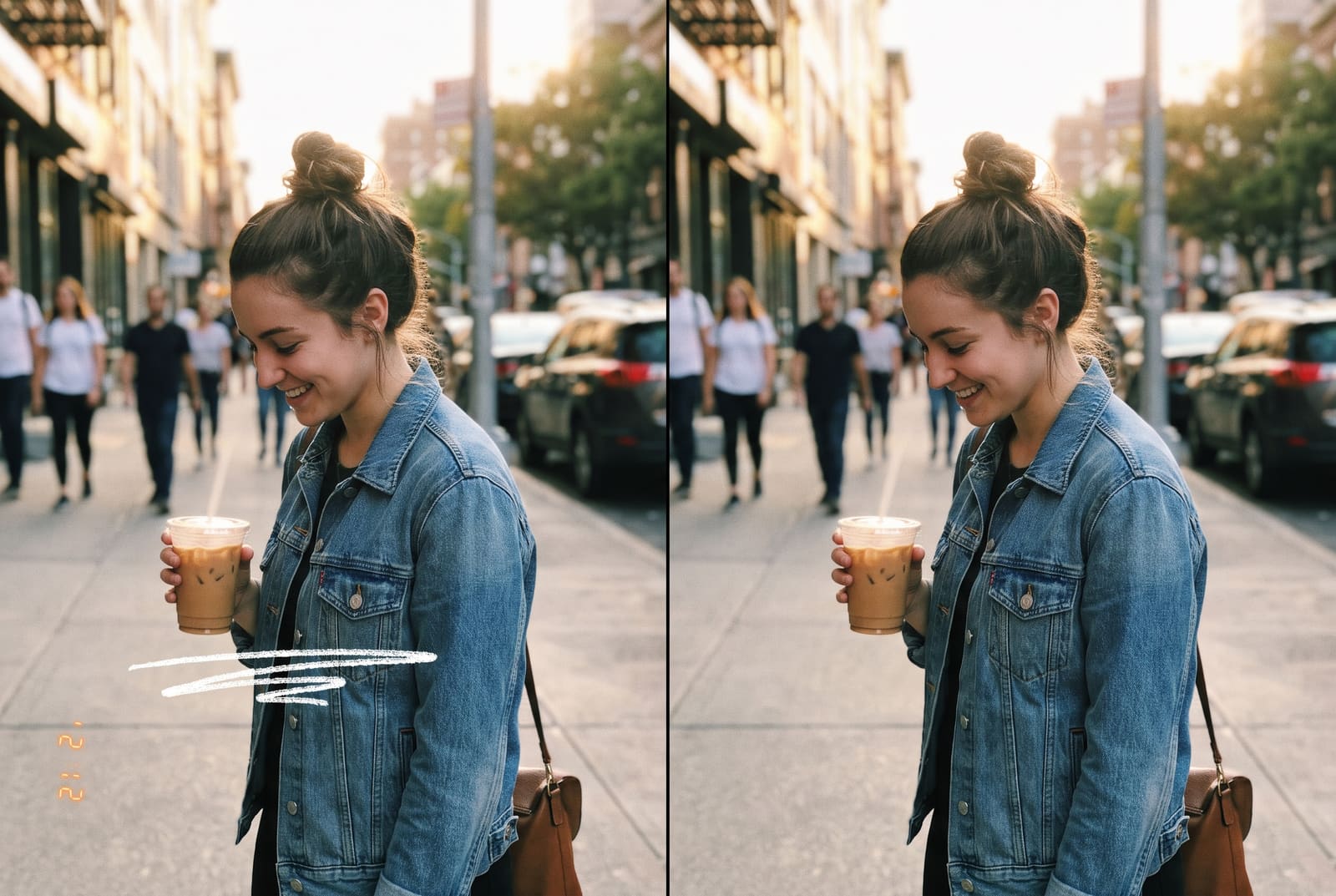
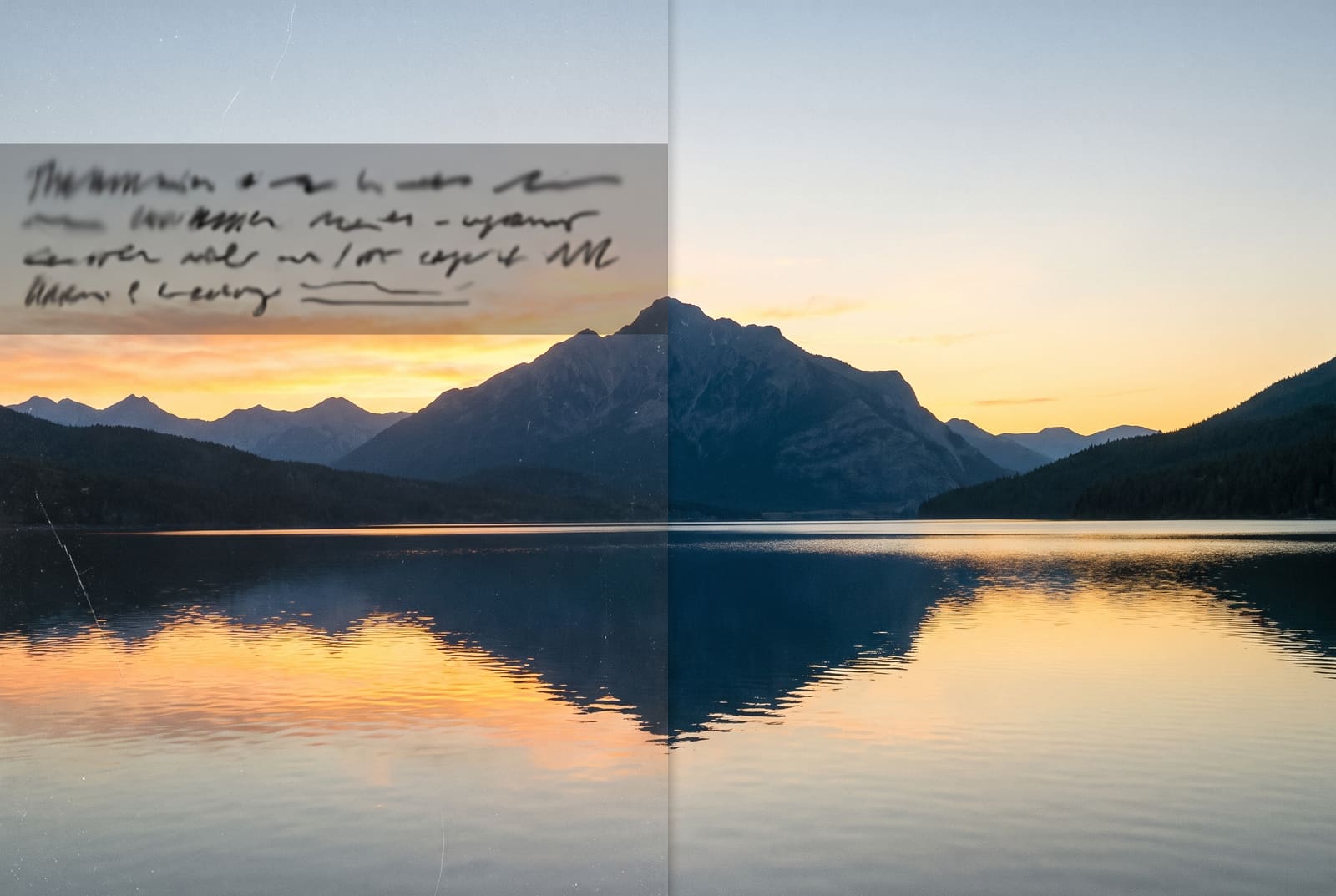
Text bars from social posts and screenshots sit on the edges of a picture. Their background is often a sky, wall or gradient, so the fill is usually clean.
Date stamps
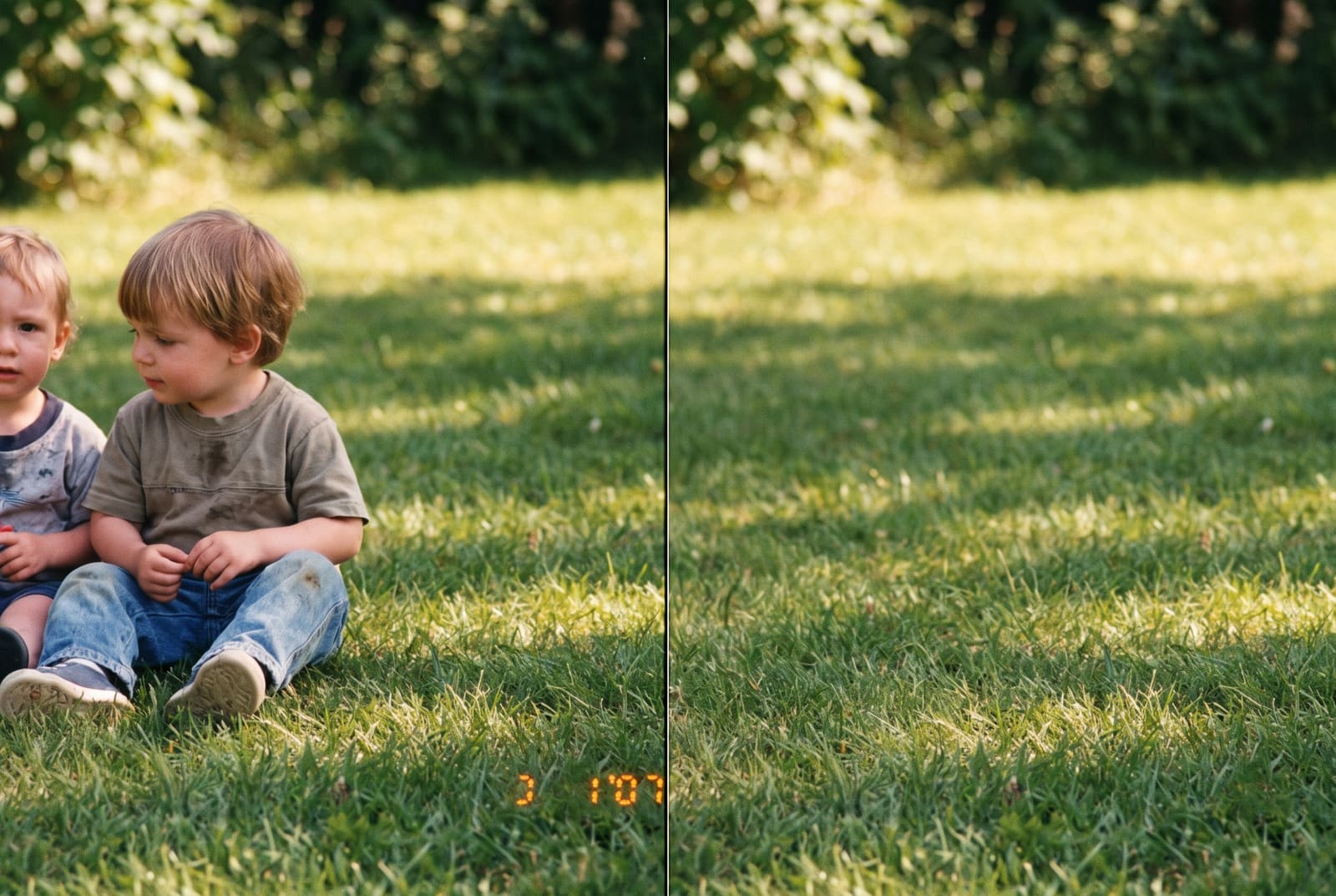
Old film cameras burned orange digits into the corner of the frame. They sit on grass, sky or fabric, so they disappear well. Check the film grain after the fill. If the patch looks smoother than the rest, that is the tell, and the fix is to add a little grain back with a filter.
Emoji, stickers and doodles
Emoji and stickers added in a stories editor are solid shapes, which are easy to select with a brush. Paint over them slightly beyond the edge, because stickers often have a thin white outline.
Signs and text in the scene
Real-world text, like a shop sign, is harder because it sits on top of structure such as bricks, windows and rooftops. If the sign is simple and the wall behind it is plain, a single pass can work. If it covers architecture, expect to retry once or twice and keep brush strokes tight.
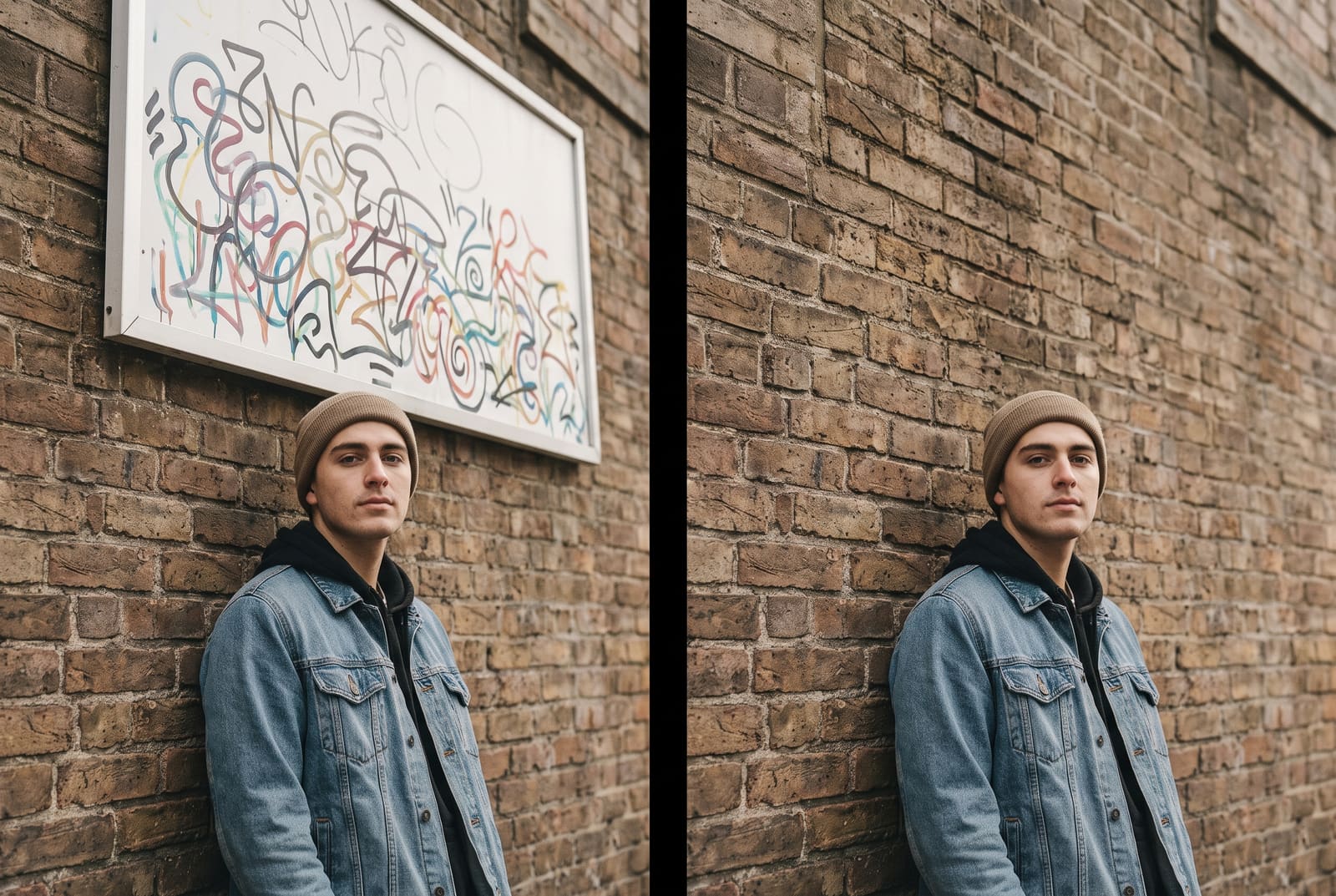
When removal will not look right
- Text over a face or hands. The AI invents skin, and invented skin looks uncanny. Use the original photo if you can.
- Large blocks of text. A paragraph across half the image leaves too much to guess. Crop instead.
- Text over a pattern. Stripes, plaid and tiles need the pattern to continue. Work in small sections.
- Low-resolution images. Fills are as soft as the surrounding pixels. If the photo is small, enlarge it first with the AI image upscaler, then clean the text.
A note on watermarks
Remove your own overlays, but do not use a text remover to strip someone else's watermark off their photo. That is a copyright problem. If you want a watermark-free version of an image, ask the owner for the original or use a licensed copy.
Get a more natural finish
- Match the grain. After a fill, add subtle texture with the photo filters if the repaired area looks too smooth.
- Use brush strokes that follow edges. Paint along the text rather than a huge blob. Smaller masks give the AI a better guess.
- Do text last if you plan to add new text. If you are replacing a caption, remove the old one, then add your own with the add text to photo tool.
- Resize at the end. Resizing before cleanup can leave halos around letters. Finish the edit, then fit it for Instagram or other platforms with the image resizer.
Frequently asked questions
How do I remove text from an image for free?
Upload the image to a free AI text remover. It scans for words, erases them and rebuilds the background behind the letters. If it misses something, paint over it with the brush and run it again.
Can I remove text from a picture without losing quality?
Only the area under the letters is rebuilt, so the rest of the photo stays as it was. Text on plain backgrounds like sky or a wall leaves almost no trace. Text over faces, patterns or fine detail is harder.
How do I remove a date stamp from an old photo?
Date stamps usually sit in a corner over grass, sky or a plain wall, which makes them easy to fill. Scan the photo, erase the digits, and check that the grain matches the rest of the picture.
Can I remove emoji or stickers that were added to a photo?
Yes, if they were flattened into the image. Paint over the emoji or sticker and the AI fills in what is behind it. If the original photo is still on your phone, use that instead for a perfect result.
Can I remove a watermark from an image?
Only if the image is yours. Removing someone else's watermark from their work is a copyright problem, so ask for the original or buy a licensed version instead.