How to Remove People From a Photo (Photobombers, Tourists, Strangers)
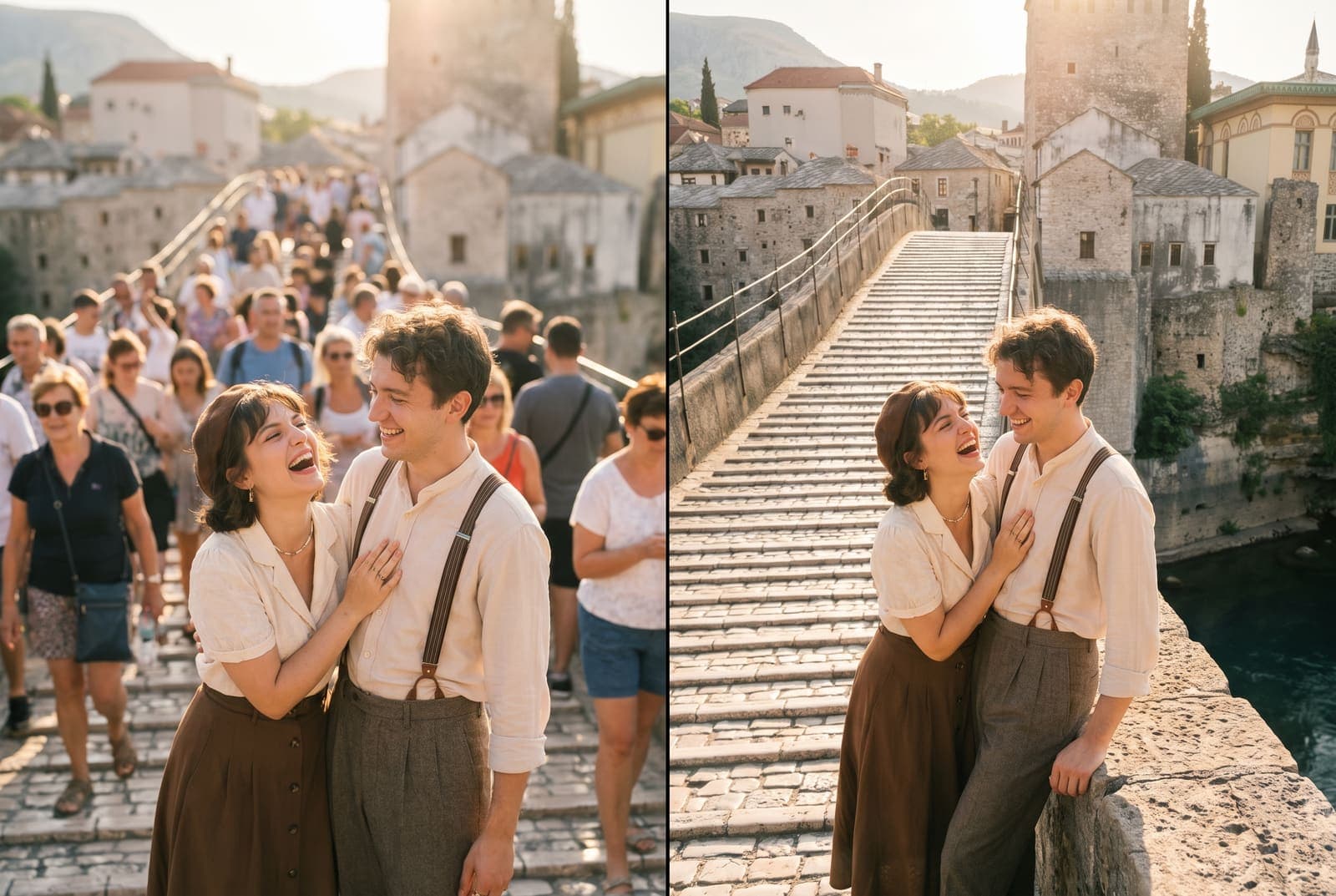
Table of Contents
You waited ten minutes for the light to be right, and a stranger in a bright red backpack walked into the frame anyway. The good news is that you no longer need Photoshop skills to fix it. Modern AI removers let you paint over a person and rebuild the space behind them in seconds.
This guide shows how to remove people from a photo, which shots work best, and what to do when the background is hard to fake. If you only need to cut someone off the edge of the frame, cropping someone out of a photo is faster.
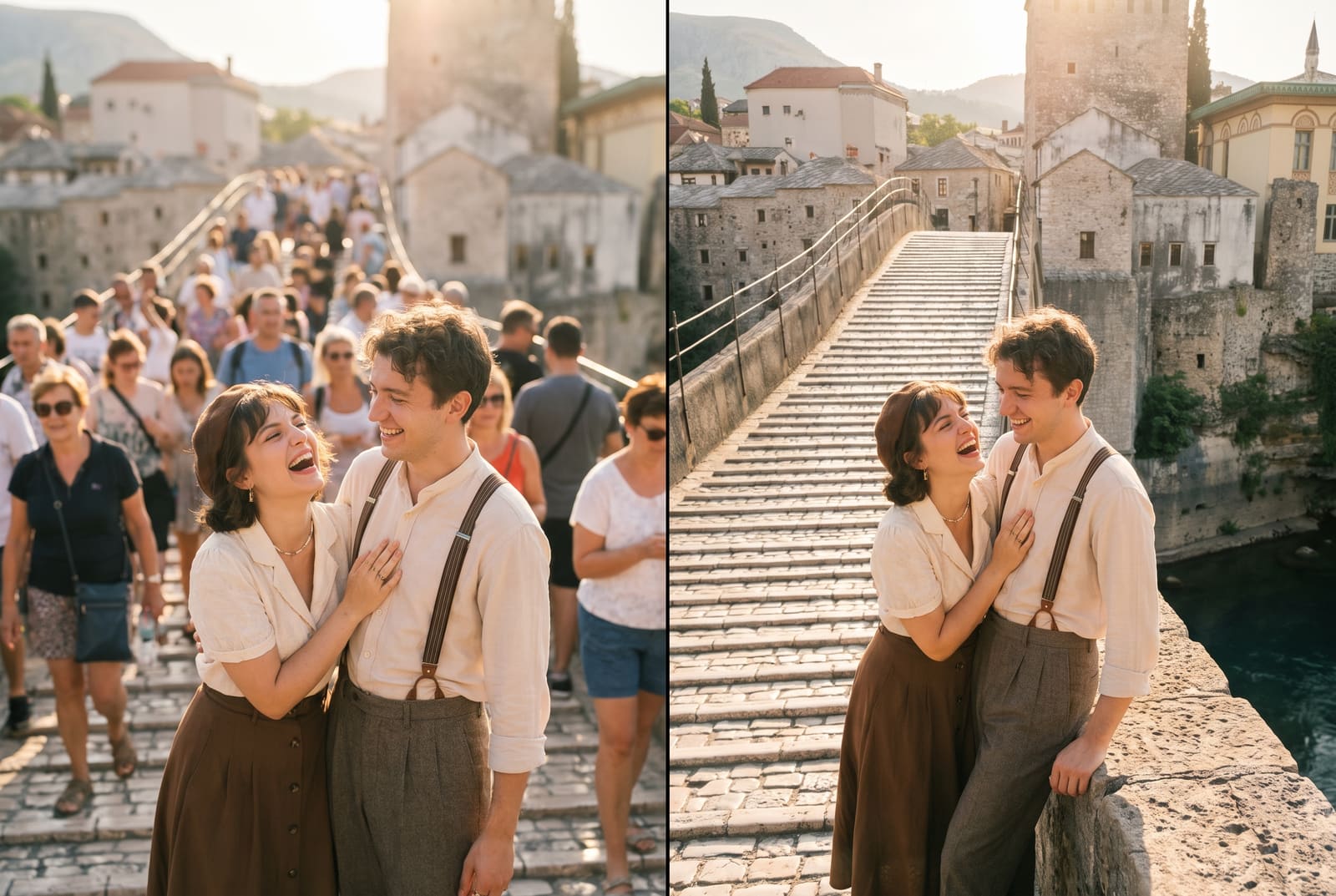
Remove people from your photo, free in your browser
Try it freeHow AI people removal works
When you erase a person, the tool has to guess what was behind them. It looks at the pixels around the area you painted, then generates new pixels that continue the cobblestones, the sky, the wall or the water. This is called inpainting.
That has two consequences:
- The AI is making things up. The result looks real when the missing area is simple and predictable, and fake when it hides something specific, like a shop sign or a face.
- The smaller and cleaner the area, the better the result. A single person on a beach is easy. Twelve people overlapping a market stall is hard.
Remove a person step by step
- Open the object remover. Upload a JPG, PNG or WebP. Keep the original file safe, because you will want to compare it.
- Set a brush size slightly larger than the person. Cover the whole body, including shadows, bags and anything they are holding. Leftover edges and shadows are the usual giveaway of an edit.
- Paint over the person and let the AI fill. Use a smaller brush near your subject so you do not erase part of them.
- Zoom in and check. Look at straight lines (railings, horizons, tile joints) and repeating patterns. If something bends or repeats oddly, undo and try a smaller area.
- Run a second pass if needed. A slightly smudged patch often improves if you paint over only that patch and fill again.
- Download the result. Check its dimensions against the original before posting. If it looks soft, the AI image upscaler can restore crispness.
You need a free account for the AI step. Basic editing tools in Instasize stay free.
Which photos work best
| Situation | Difficulty | Why |
|---|---|---|
| Person on a beach, grass or snow | Easy | Plain texture the AI can continue |
| Tourist on a plaza or street | Easy to medium | Cobbles and pavement repeat well |
| Person in front of water or sky | Easy | Smooth gradients |
| Person against a brick or tile wall | Medium | Pattern lines need to stay straight |
| Person overlapping your subject | Hard | The AI may blend parts of both |
| Person standing in front of text or a sign | Hard | Letters are rebuilt as nonsense |
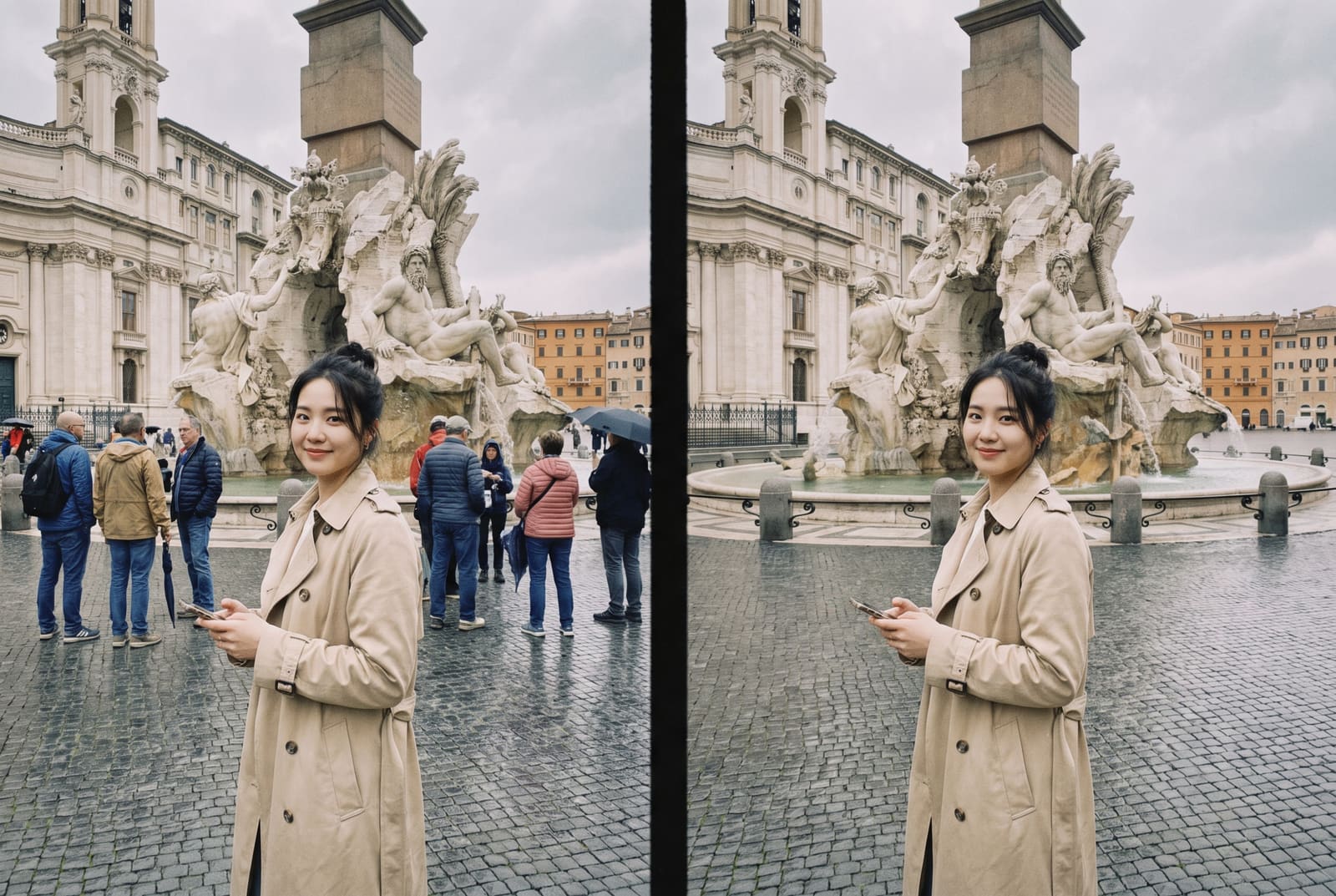
Tips for a clean result
- Remove the biggest distraction first. One person at a time keeps the AI focused and makes mistakes easy to undo.
- Include shadows. A shadow with no person looks haunting. Paint it too.
- Work at full resolution. Start from the original camera file, not a screenshot.
- Leave natural clutter. A scene that is completely empty can look more fake than one with two distant figures. Faraway people at the horizon are fine to keep.
- Fix color last. Do your removal first, then adjust brightness and color with the AI photo editor.
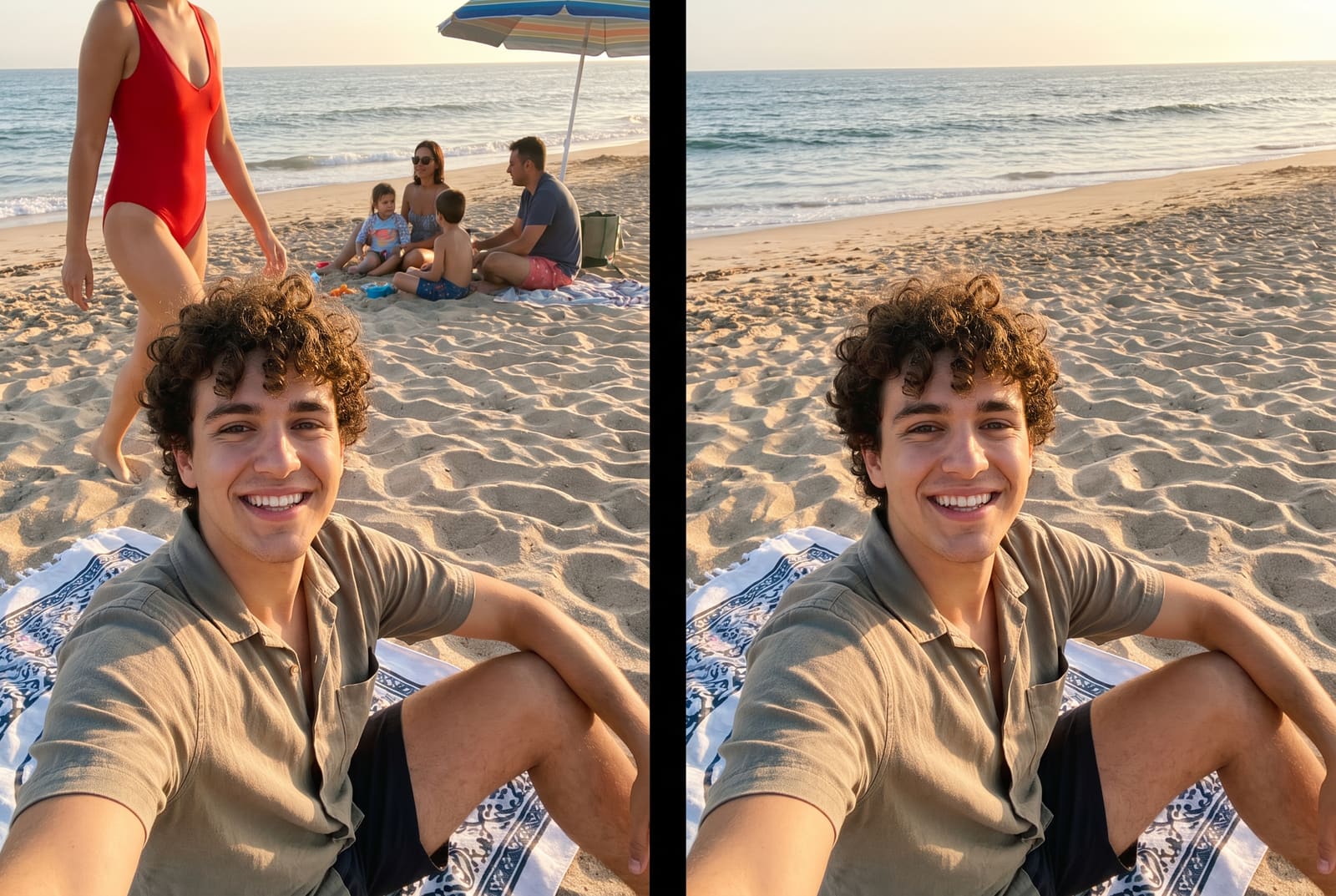
When you need a different approach
- Someone is touching or overlapping your subject. Crop them out or retake the photo. Every removal tool struggles when the edges of two people blend.
- They are only at the edge of the frame. Cropping is cleaner than inpainting. Try the crop tool first.
- It is a whole crowd. Take the shot again at a quieter time, or capture several frames on a tripod and combine them. This is the only method that gives real background pixels instead of guessed ones.
- You want a different setting. If the background is beyond saving, the background remover can cut your subject out and place them on a clean backdrop.
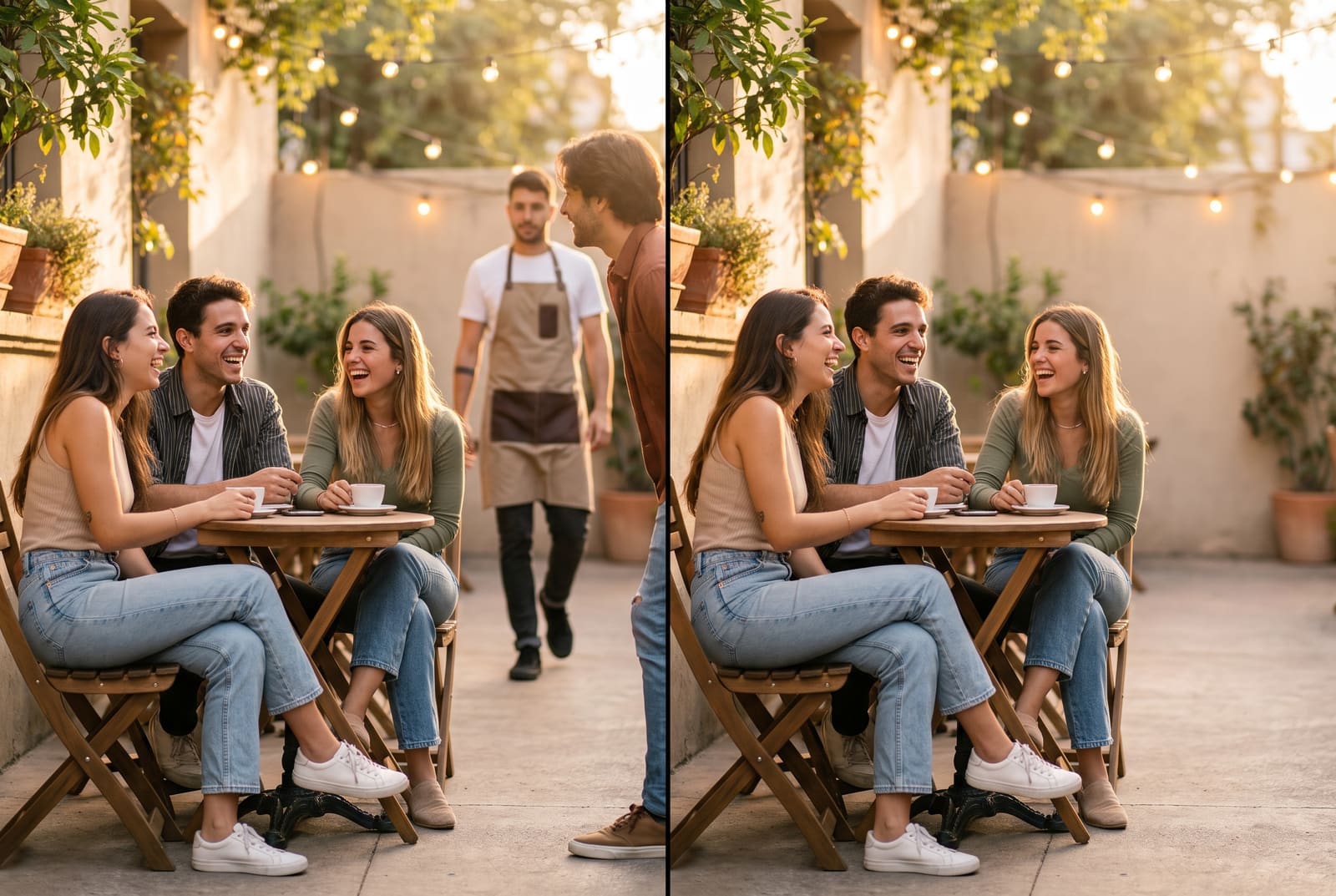
Shoot photos that are easy to clean later
You can save yourself most of the editing at capture time:
- Arrive early or at golden hour, when fewer people are around.
- Shoot in burst mode and pick the frame with the fewest strangers.
- Use a wider angle than you think you need. More background means better fills.
- Keep your subject a few steps away from the crowd so that a clean gap exists between them and others.
- Leave strong edges visible. A railing or horizon that continues across the removed area is much easier to rebuild than a messy tangle.
Frequently asked questions
How do I remove a person from a photo for free?
Open a free AI object remover, upload the photo, paint over the person with the brush and let the AI fill in the background. Download the result and compare it with the original. Instasize's object remover works in your browser and needs a free account for the AI step.
Can you remove a person who is standing in front of something?
Yes, but the AI has to invent what was behind them. It works well for plain or repeating backgrounds such as sand, grass, water, sky or brick, and less well for faces, text or detailed architecture hidden behind the person.
How do I remove a crowd of tourists from a photo?
Remove them in passes: erase the largest and closest people first, check the result, then erase the smaller groups. Painting over a whole crowd at once usually gives smeared results.
Will removing someone make the photo lower quality?
Only the repainted area is new, so it can look slightly softer than the rest. Keep the original, compare the result at 100 percent zoom and run the image through an upscaler if you need extra detail.
Is it OK to remove someone from a photo?
It is fine for your own photos, such as stray tourists or a photobomber. Do not use edits to mislead people about who was somewhere, and get permission before editing and sharing someone else's photo.