Unsharp Mask With a Strength Slider
The same technique photo editors use: it blurs a copy, finds the difference and adds that detail back to the edges. Slide from subtle to strong.
Make a soft photo clearer with an unsharp mask and a strength slider. The result appears instantly in your browser, and a before and after slider shows exactly what changed. For harder cases, AI enhance (Pro) rebuilds detail.
Same job on a different file type or batch size. Each tool still processes the file in this browser.
A slightly out-of-focus shot, or a photo softened by compression or resizing, looks crisper after one pass of unsharp mask.
Shrinking an image softens it. Add a light sharpen after you resize for a website, a listing or a thumbnail.
Scanned pages, screenshots and graphics with small text read better when edges have a little more contrast.
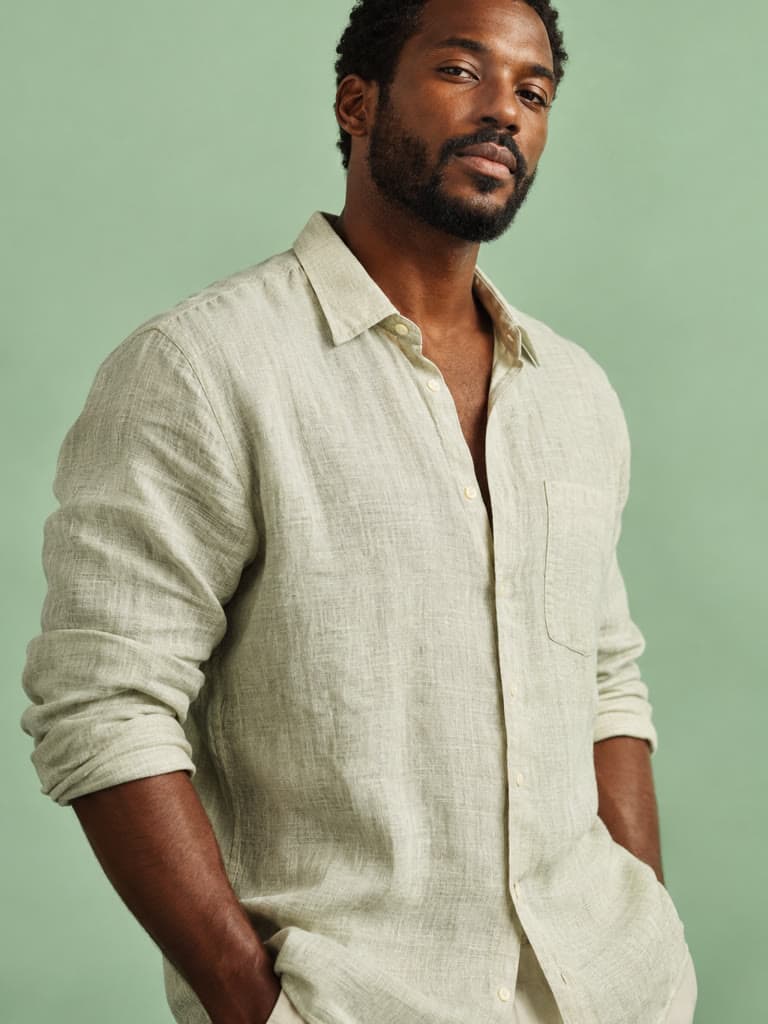
Fabric, labels and stitching look clearer to shoppers who zoom in. Sharpen last, in small amounts, and check the edges.
A real unsharp mask in your browser, with one slider and a way to check the result at full size.
The same technique photo editors use: it blurs a copy, finds the difference and adds that detail back to the edges. Slide from subtle to strong.
Sharpening is applied to brightness, not color, so you do not get colored fringes around edges, and flat areas are left alone so noise is not amplified.
The radius adapts to the image size, so a small web image and a large phone photo both get a natural result at the same slider setting.
Drag across the image or zoom in to check edges for halos. Everything runs on your device, and your original dimensions are kept.
A strength of 40 to 60 percent suits most photos. Raise it until edges look clean, then back off as soon as you see bright halos or a crunchy, over-processed texture.
Fix exposure, crop and resize first, then sharpen, because resizing after sharpening softens the result again.
Sharpening increases contrast on detail that exists. It cannot restore detail lost to heavy motion blur or a missed focus. For those photos, try AI enhance (Pro), and compare it with the original.
Use this page when you want a strength slider and nothing else changed: it is an unsharp mask on a photo that is already well exposed.
The unblur tool applies a gentler edge filter aimed at mildly blurry photos, then offers AI enhance for the rest.
If the photo is also dull, dark or grainy, the photo enhancer corrects brightness, contrast, noise and color in the same pass.
Select one JPG, PNG or WebP image up to 10MB. It is sharpened in your browser, so there is nothing to upload or sign up for.
Move the strength slider until edges look crisp. Stop before you see halos around high-contrast edges.
Drag the slider and zoom in to check fine detail, then go back to the strength slider if you need to adjust.
Download the result. It keeps your original size and format. Still soft? Try AI enhance (Pro) for a 2x PNG.
Great app for filtering photos and even greater app for sizing pictures for not only posts but story photos as well... love this app I mainly use insta size for all my posts now ;)
Resizing photos for social media should be a cinch, but most editing programs are a pain to use. Of the dozen I’ve used, Instasize is the fastest, easiest and most consistent...
Perfect app for the exact social media picture sizes. Love it. I use it daily. & I like the premade options they give you for different social medias!
Its the best app. for sizing photos to fit for Instagram or other forms of social media. You can also edit photos and create collages with multiple photos. It’s had been my friend for several years!
Always helpful when needing to resize photos
I love this app. Makes posting all types of photos. Love how it makes them fit on different formats
I use this app everyday to perfectly resize images for all of my social media platforms
This app saved the day for me! I’m finally able to resize my photos for IG....effortlessly
We use this App weekly to resize pics for social media posts. Very user friendly, easy to use program when you want to get in and out quickly...
Upload the image and move the strength slider until the edges look crisp, then download it. The sharpening runs in your browser with an unsharp mask and shows the result instantly. It works best on mild blur or softness.
Step-by-step articles for the same job, with examples and common mistakes.
Create without limits. Get full access to every premium AI model and our entire suite of tools with a single plan.
Essential tools for casual creators.
Free forever
Essential AI tools for creators
Billed monthly
Advanced features for professionals
Billed monthly
Maximum power and speed
Billed monthly
Generate from text, expand photos, remove backgrounds, and upscale to 4K