How to Fix a Pixelated Image: Why It Happens and What Actually Works
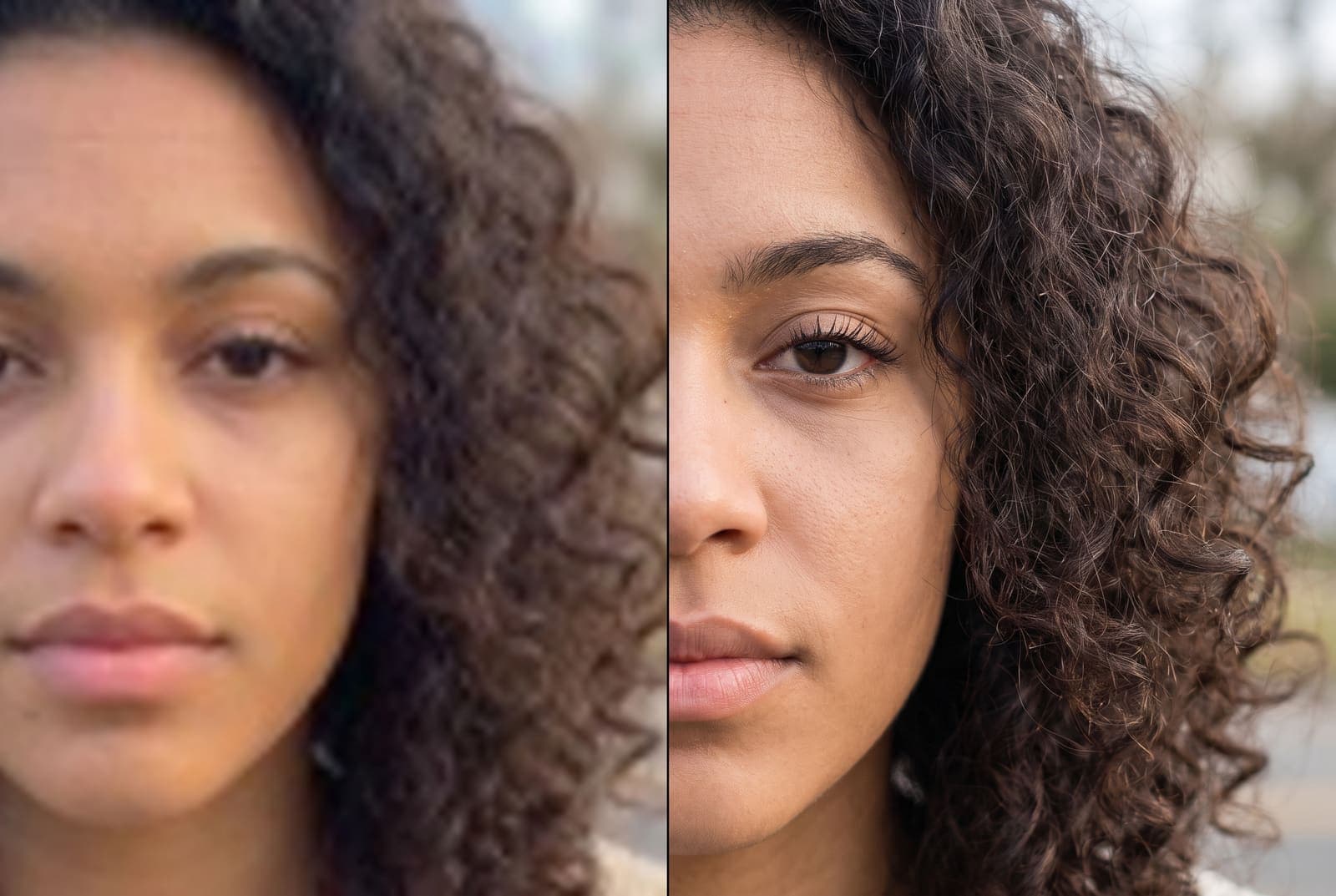
Table of Contents
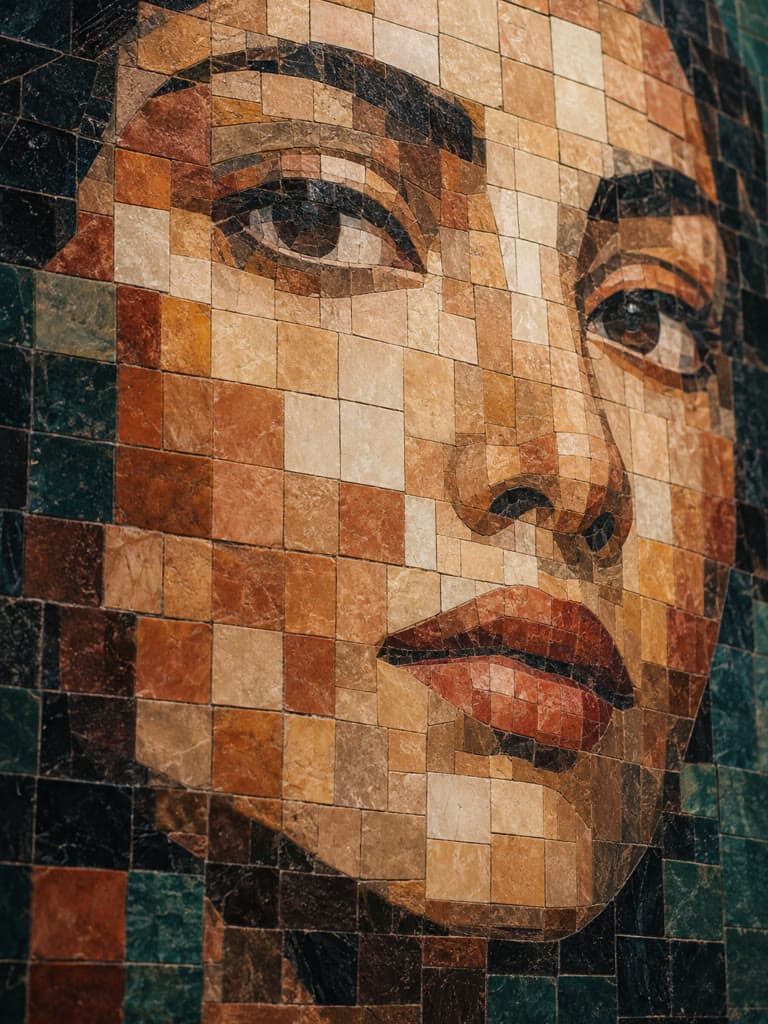
A pixelated image looks like it is made of tiny squares. Edges turn to staircases, faces look like a mosaic and text becomes unreadable. It is one of the most common photo problems and also one of the more fixable ones, as long as you know what caused it.
This guide explains where pixelation comes from, how to repair it with an AI upscaler, and when to stop trying and find a better source.
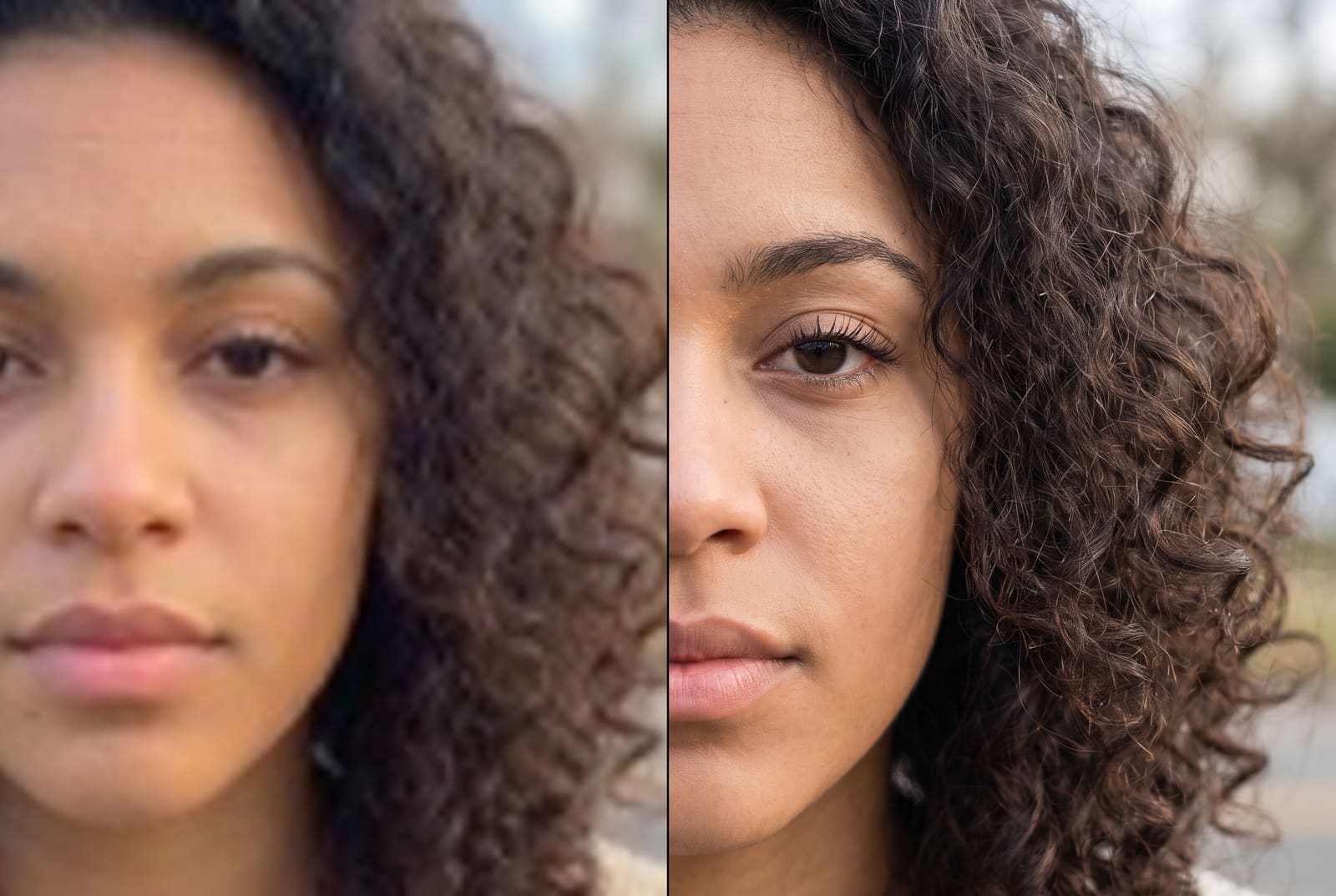
Fix a pixelated image, free in your browser
Try it freeWhy images get pixelated
A digital image is a grid of pixels. When there are too few of them for the size you are looking at, each pixel gets stretched into a visible block. That happens in four main ways:
- You zoomed in on a small photo. A 400 pixel wide image on a 4K screen has to be stretched many times.
- You enlarged a thumbnail. Thumbnails from search results and social posts are small on purpose.
- Compression crushed the detail. Messaging apps and some social platforms shrink and re-compress photos each time they are shared. After a few rounds, soft blocks appear. See how to avoid Instagram compression for the posting side of this.
- It was screenshotted or re-saved repeatedly. Every copy of a copy loses quality.
For the resizing theory behind it, understanding pixelation in resized images goes deeper. Here we focus on the repair.
What is possible and what is not
Pixelation destroys detail. Once pixels are blocky, the fine information, like individual eyelashes or text strokes, is gone from the file.
- Mild to moderate pixelation: an AI upscaler can rebuild convincing detail. This is the sweet spot.
- Severe pixelation (tiny sources): the result looks better but can include invented textures. Do not use it as proof of anything.
- Deliberate blur or censor boxes: they are made to hide information and cannot be honestly reversed.
Fix it with an AI upscaler
An upscaler does more than stretch. A trained model looks at the image and generates new detail, so edges become clean instead of stair-stepped.
- Open the AI image upscaler and upload your photo. JPG, PNG and WebP work.
- Choose 2x or 4x. Pick 2x for a mildly pixelated photo. Choose 4x only when the source is quite small, since each step adds more generated detail.
- Wait for the result and compare it side by side with the original.
- Zoom to 100 percent. Check faces, text and fine patterns for artifacts such as waxy skin or odd textures.
- Download and keep the original.
You need a free account for the AI step.
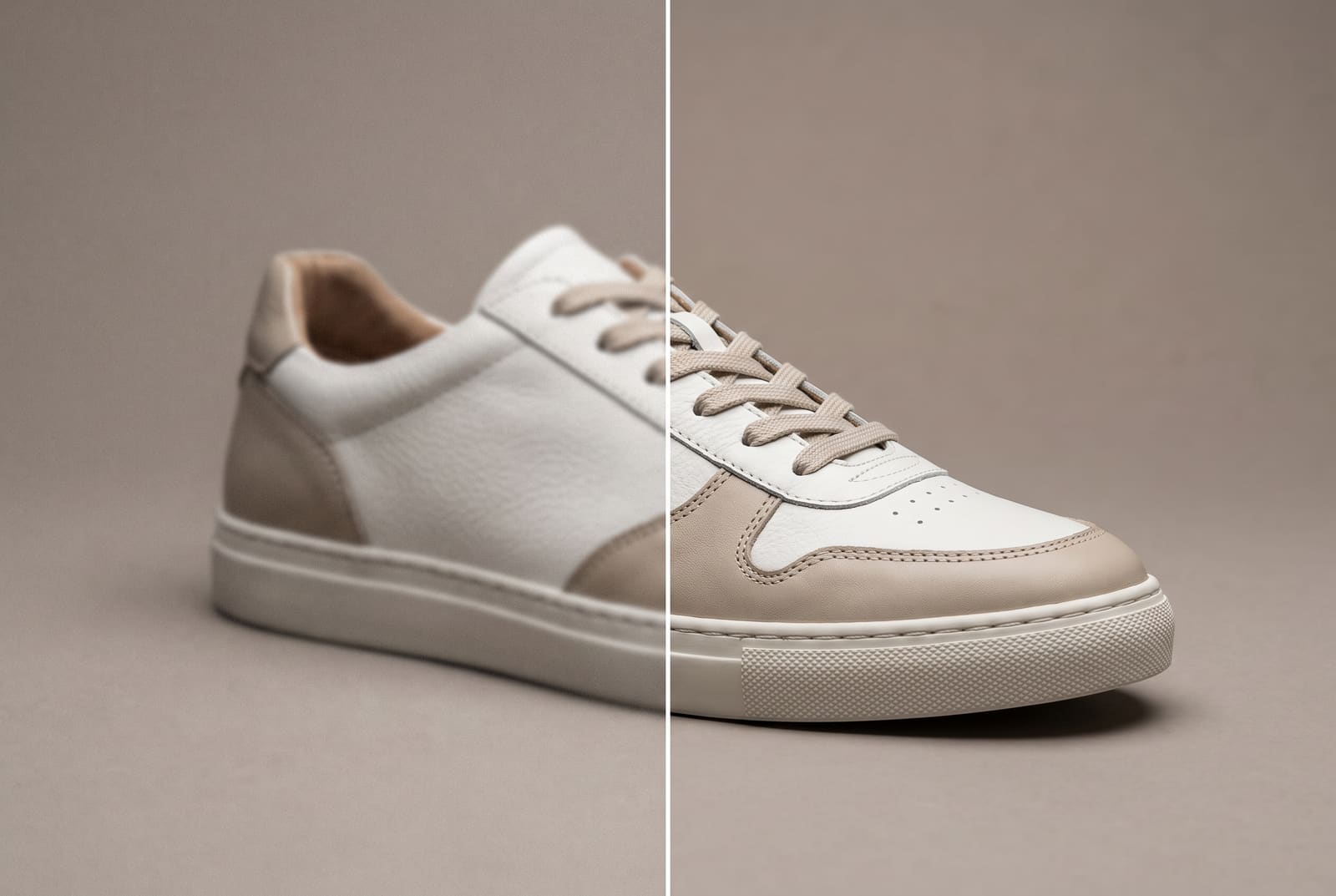
Fix pixelation from messaging apps
Photos sent through chat apps are the most common case. Before you upscale, try to get a better source:
- Ask the sender to share the original file as a document or via cloud link, which skips compression.
- Check your own camera roll for the original.
- If you only have the compressed copy, upscale it once, then sharpen lightly with the unblur tool if it still looks soft.
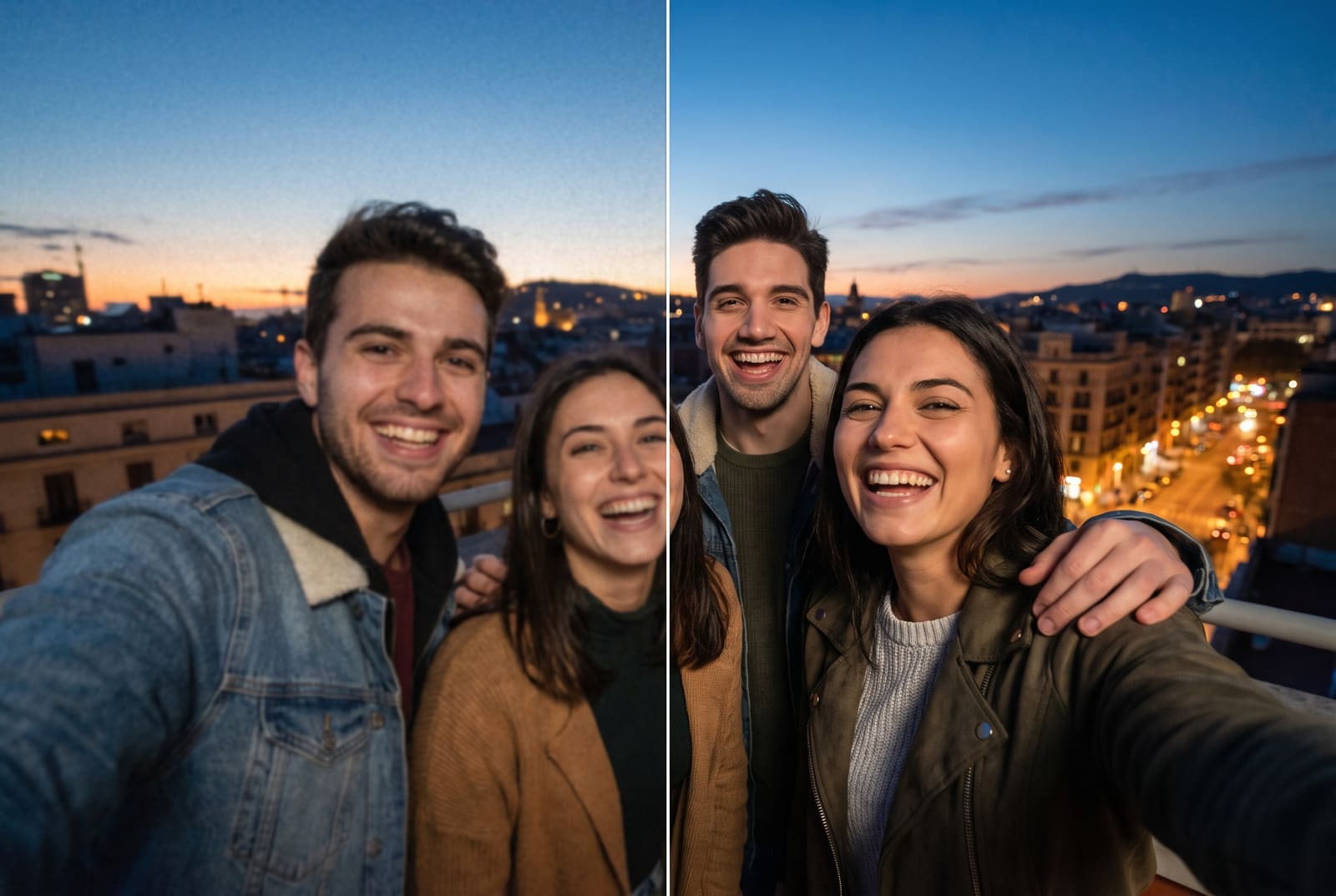
Fix pixelation before printing
Print needs far more pixels than a screen. A photo that looks fine on a phone can pixelate on a poster. The target is about 300 pixels per inch for a sharp print, which for an 8 by 10 inch print means 2400 by 3000 pixels. Upscale the photo to reach the size you need and use the print size calculator to check what your image supports. If it is an AI-generated image, the Midjourney print guide has a full workflow.
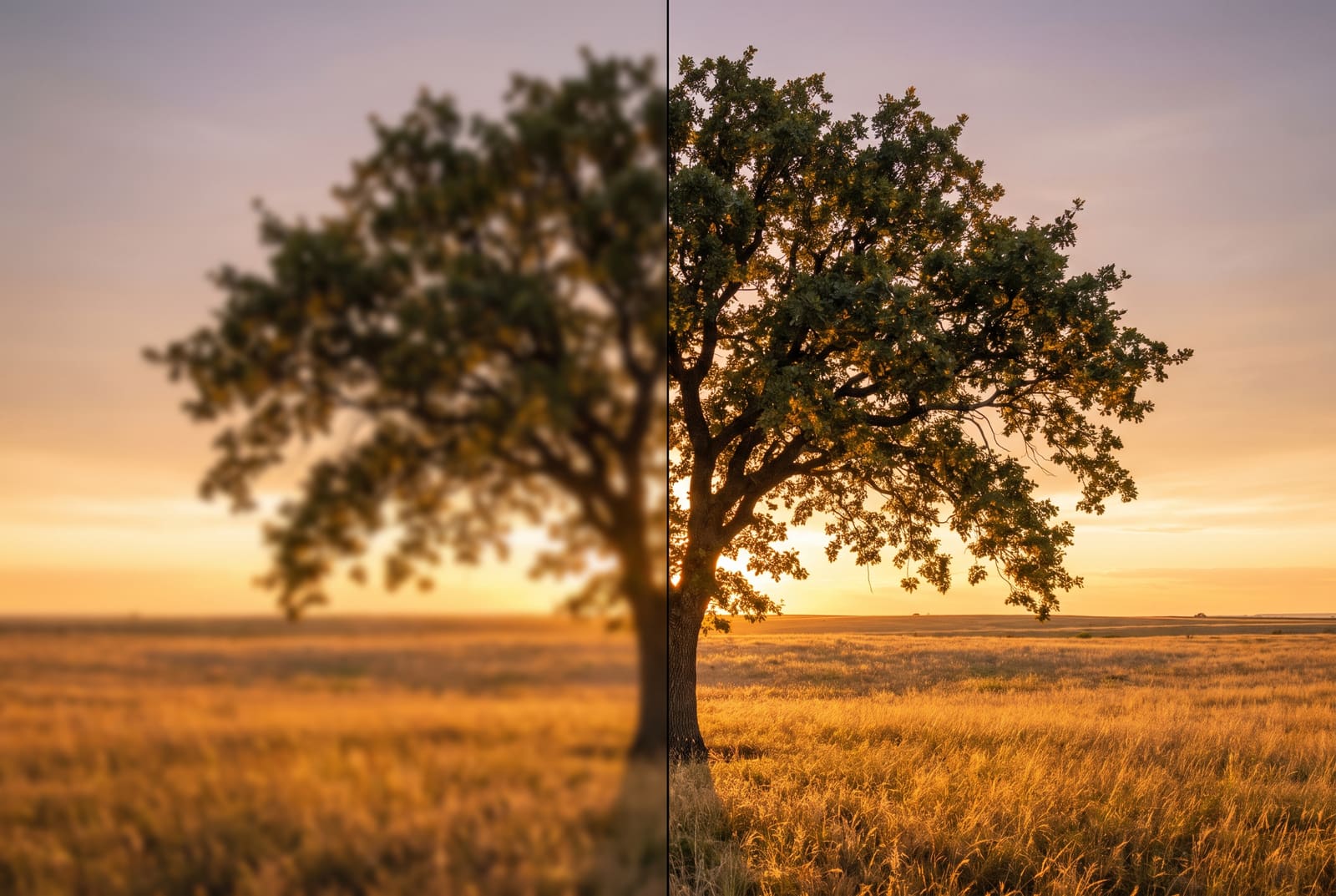
Tips for the best repair
- Upscale once. Repeatedly upscaling the same file compounds artifacts. If you need 8x, start from 4x of the original rather than chaining.
- Start from the largest copy you have. An original always beats a screenshot.
- Do other edits first, then upscale last. Resize, crop and remove objects before enlarging so you are not enlarging mistakes.
- Do not oversharpen. Sharpening a pixelated image makes the blocks crisper, not better. Upscale first.
- Use PNG for intermediate files. JPG re-compresses and adds new blocks each time you save.
- Judge at the size people will see. A tiny avatar does not need a perfect 4x.
Prevent pixelation next time
- Shoot and export at the highest quality your device offers.
- Keep images at the dimensions you need. Check dimensions before uploading anywhere.
- Avoid saving a JPG, editing it and saving again over and over.
- Compress once, at the end, with the image compressor rather than at every step.
- For general guidance on quality while resizing, see image resizing and quality.
A quick repair checklist
- Find the biggest, least compressed copy of the image you can.
- Crop first, so the upscaler works on pixels you will keep.
- Upscale 2x, and only go to 4x if 2x still looks soft.
- Zoom to 100 percent and look at faces, text and edges for odd textures.
- Save one PNG, then compress or resize for the final destination only once.
If the result still looks wrong, try a different crop or a slightly different source. Small changes in the input can change what the AI generates.
Frequently asked questions
How do I fix a pixelated image?
Upload it to an AI image upscaler and enlarge it 2x or 4x. The AI generates new, smoother detail instead of stretching the existing blocks. Inspect the result at 100 percent, because the new detail is a good guess, not the original.
Why is my image pixelated?
Usually because it has too few pixels for the size you are viewing it at. The common causes are zooming in on a small photo, enlarging a thumbnail, heavy compression from messaging apps and screenshots of a screenshot.
Can you unpixelate an image completely?
You can make it look much better, but you cannot recover real information that was never captured. AI restores plausible detail. For an important photo, find the original file.
Can I fix pixelation caused by an intentional blur or censor block?
No. Censor blocks are meant to hide information, and we do not recommend trying to reverse them. This guide is for photos that are low-resolution or over-compressed by accident.
How do I stop images from getting pixelated?
Start from the original file, avoid enlarging past what the pixels support, export at the right size and keep compression moderate. For websites and posts, resize to the exact dimensions needed with the image resizer.