Instagram Story Ideas for Photos: 13 Creative Layouts
Table of Contents
The best Instagram Story ideas for photos give each image a clear purpose: introduce a person, reveal a transformation, ask a question, preview a post, or show a product in context. You do not need a complicated template to make a strong Story.
Below are 13 photo-first Instagram Story ideas you can adapt for selfies, travel shots, product photos, team images, and everyday moments. Before publishing, use the Instagram Story resizer to fit the photo to a 1080 × 1920, 9:16 frame without an accidental crop. Facebook Stories use the same vertical canvas, so check the Facebook Story size guide when repurposing an idea there.
1. Use one team photo as the hero.
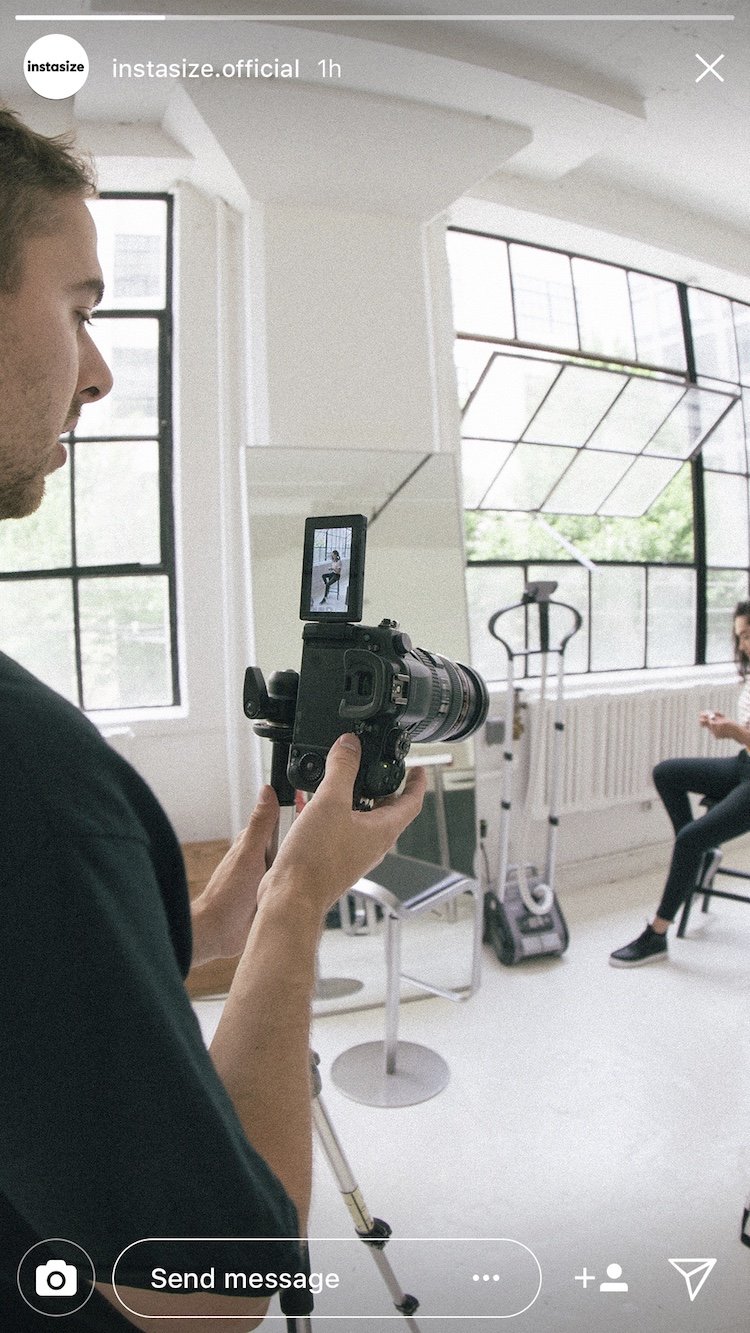
Choose a candid team photo, add the person's name and role, and let them take over the next few Story frames. One strong image with a short introduction is easier to read than a crowded collage and gives followers a useful behind-the-scenes view.
2. Build a countdown around a product photo.
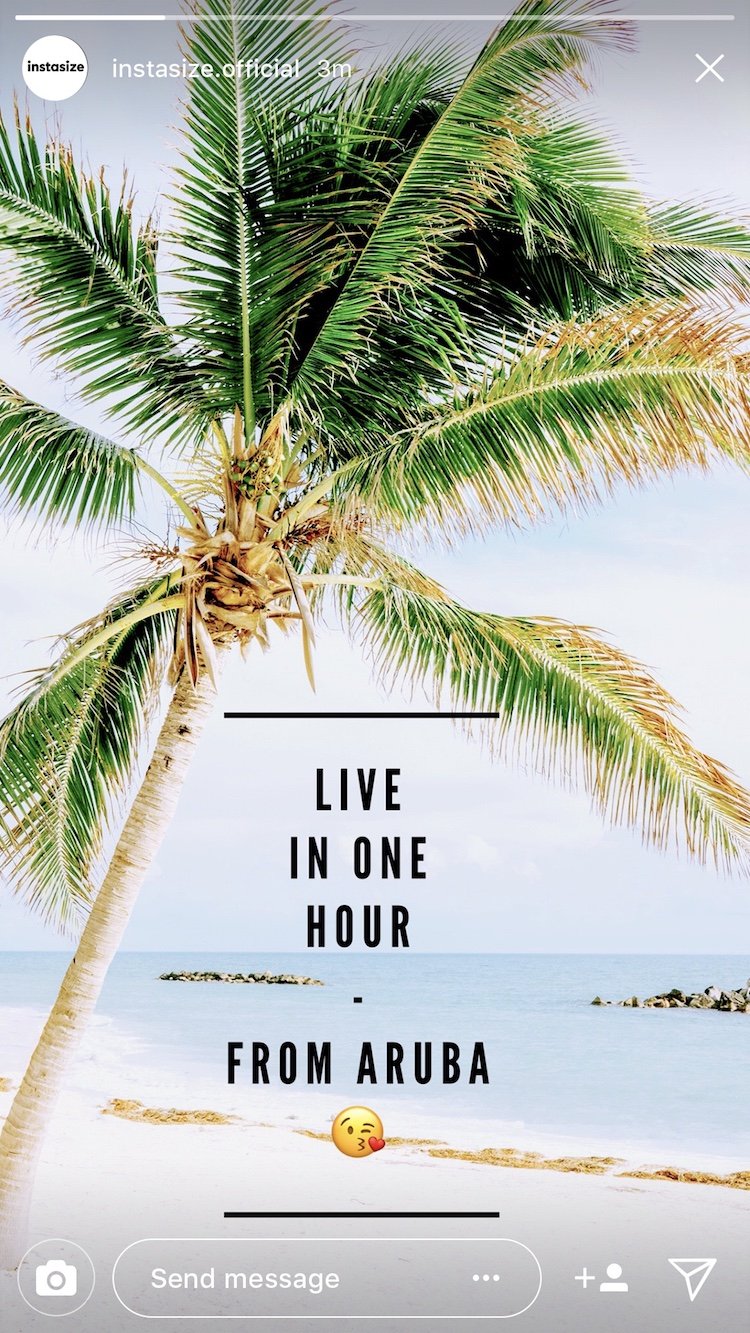
Use a clean product or event photo as the background, darken or blur any busy area behind the text, and place Instagram's countdown sticker where it will not cover the subject. Follow with closer detail shots as the launch approaches.
3. Share press features or shoutouts.
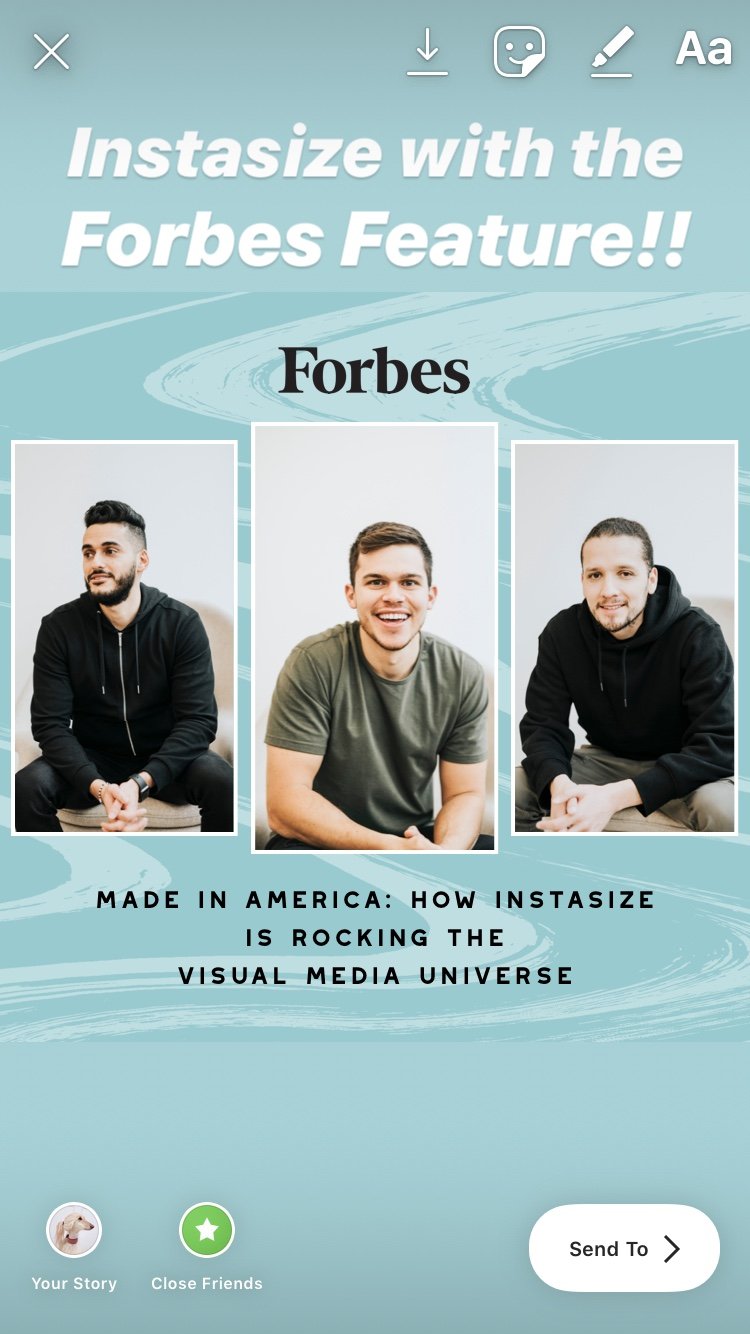
Turn a press mention, review, or creator shoutout into a Story image. Crop the screenshot so the source and important sentence remain visible, tag the original account, and add a short note explaining why the mention matters.
4. Play a fun game with your followers.
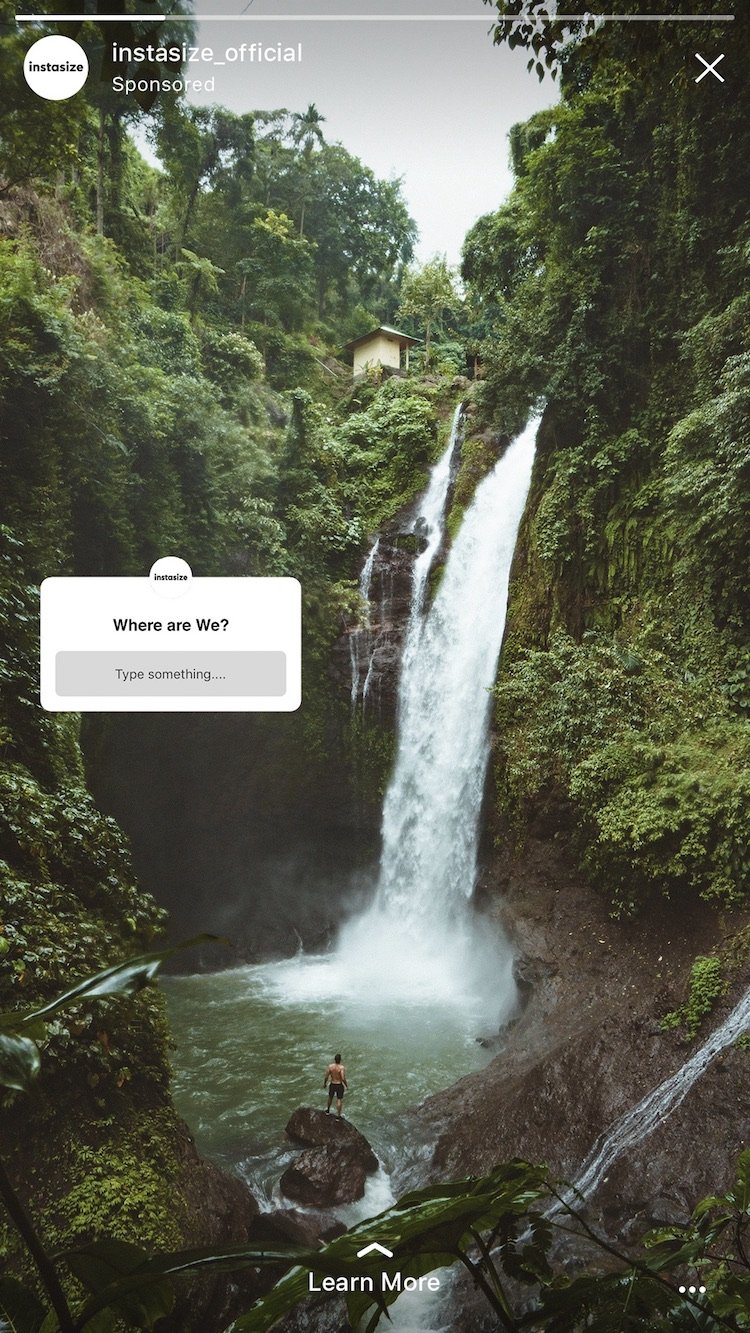
Crop into one detail of a photo and ask followers to guess the place, object, or final result. Use a poll or question sticker, then reveal the full image in the next frame.
5. Wow them with typography.
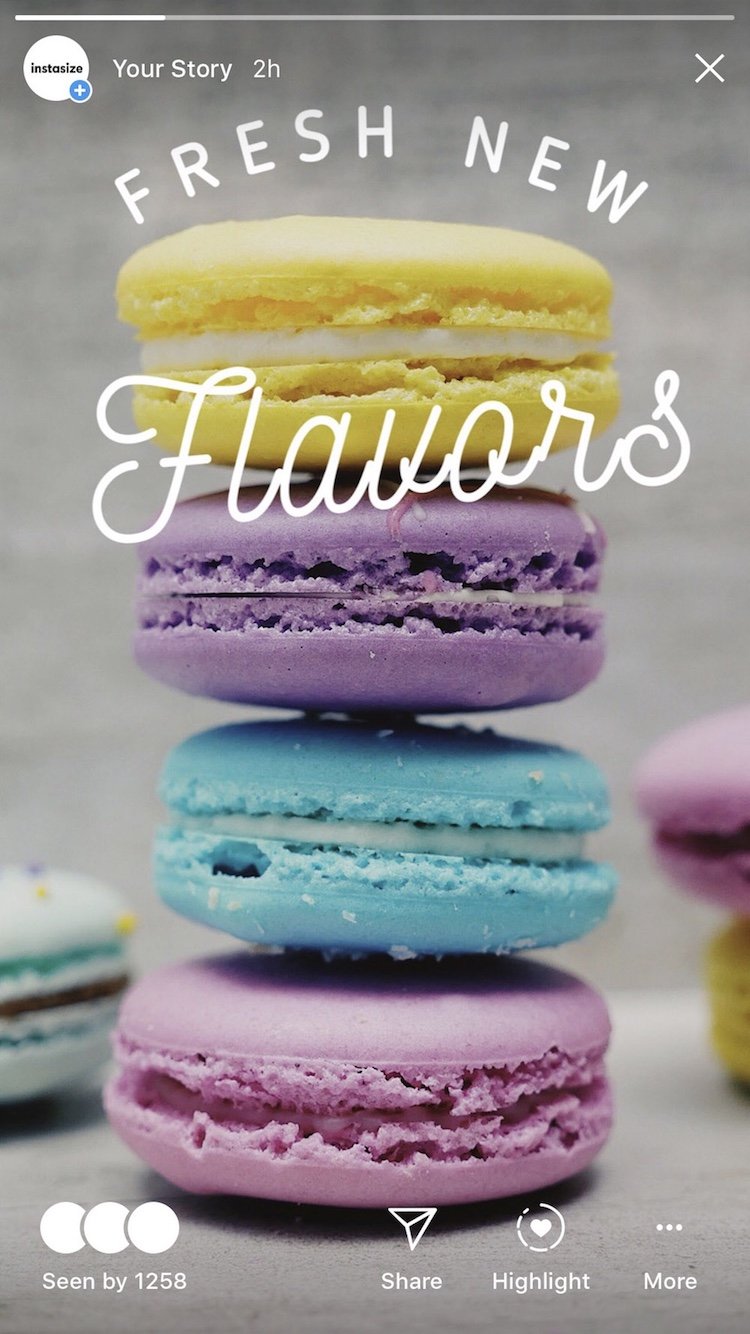
Use a photo with open negative space, then place a short headline in that space instead of covering the subject. Keep the type large, high-contrast, and limited to one main idea per frame. If a solid canvas suits the message better than a photo, follow the steps to change the Instagram Story background color.
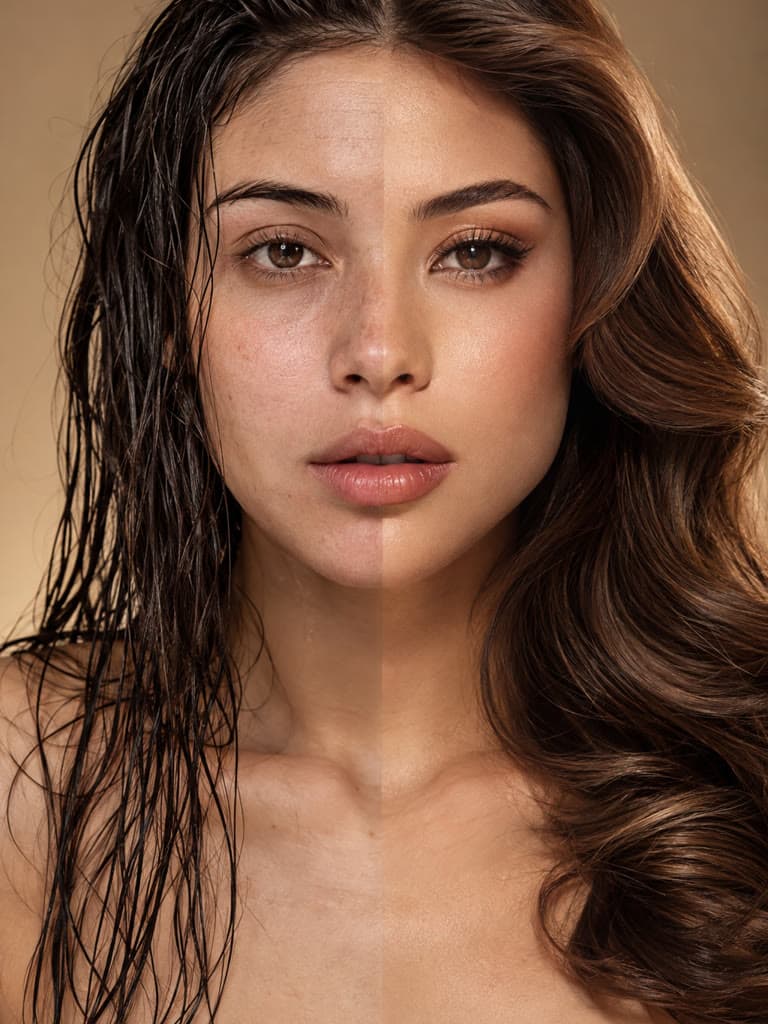
6. Before/After edits.
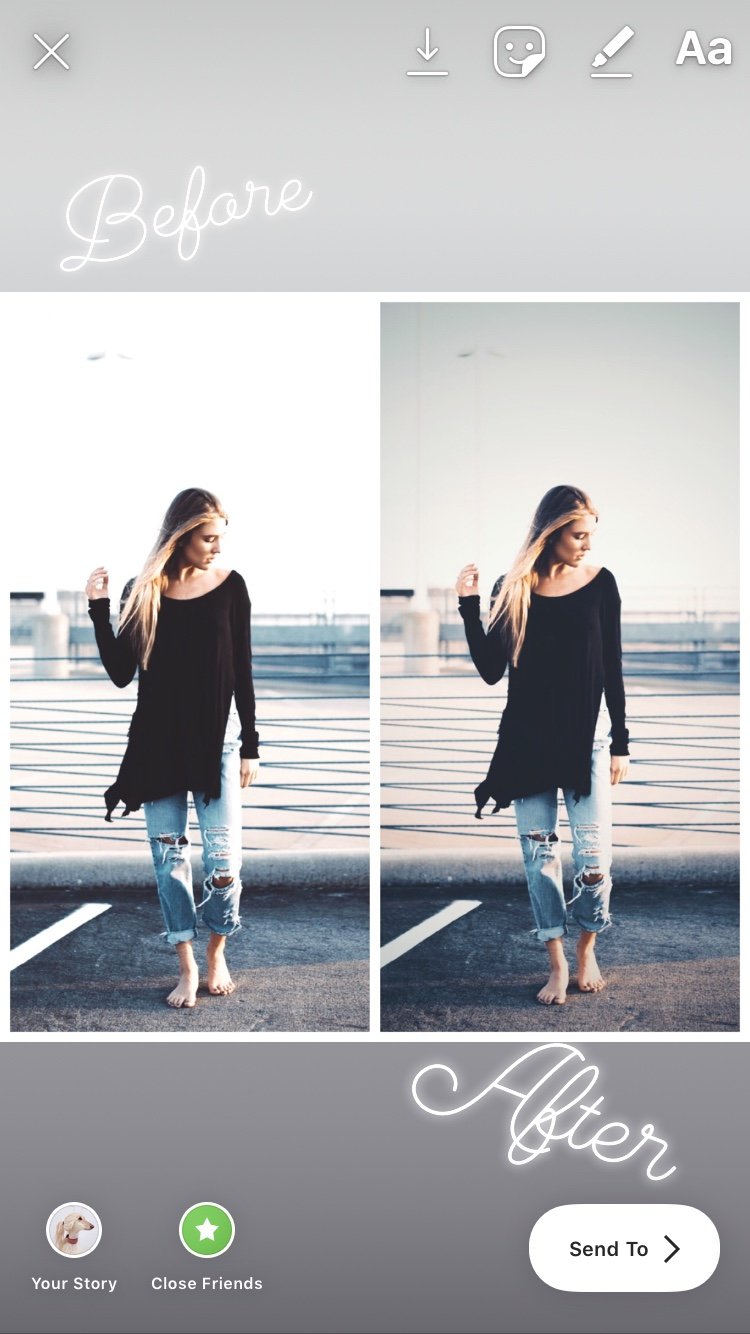
Post the original photo first and the edited version second, aligned to the same frame. Viewers can tap back and forth to compare them. Label both versions clearly so the transformation is easy to understand.
7. Do Q&A videos.
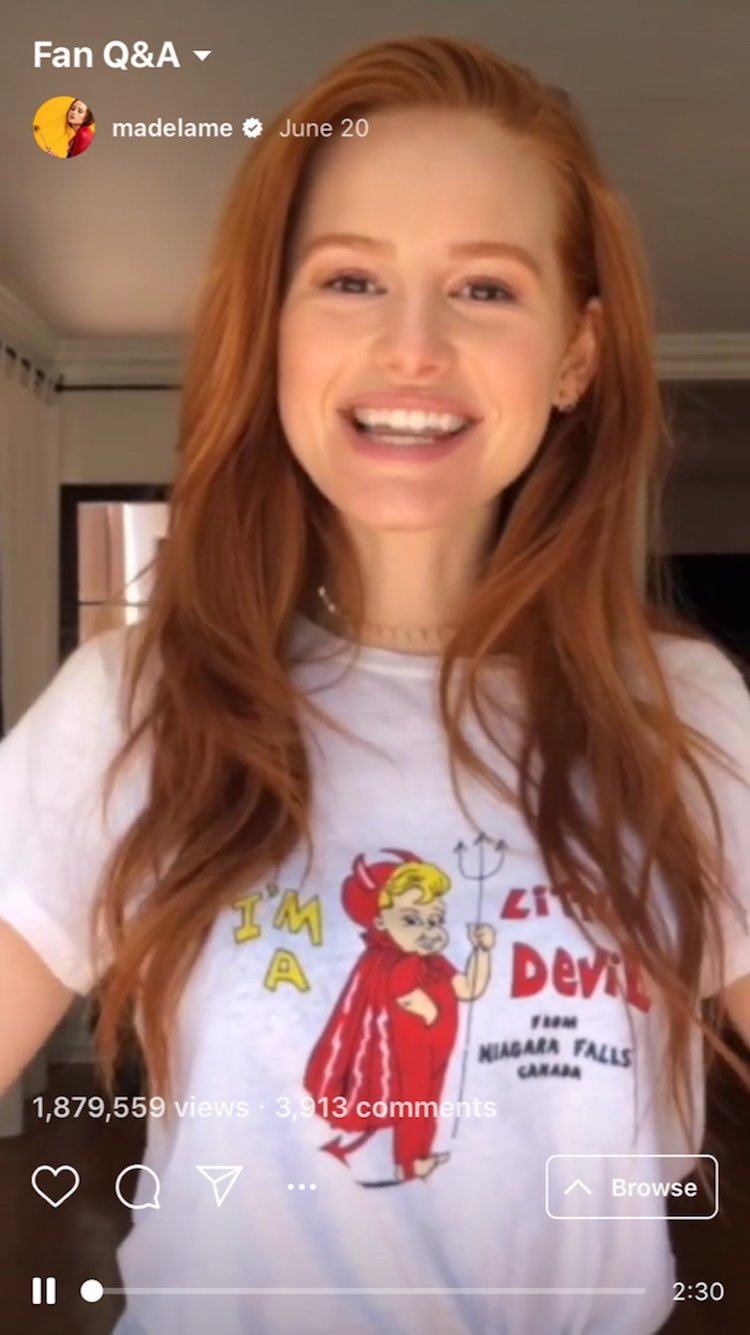
Pair a selfie or speaker photo with Instagram's question sticker, then answer selected questions in following frames. Save evergreen answers to a Highlight so new visitors can find them later, and prepare a recognizable cover with the Instagram Highlight cover size guide.
8. Share other versions of a feed post.
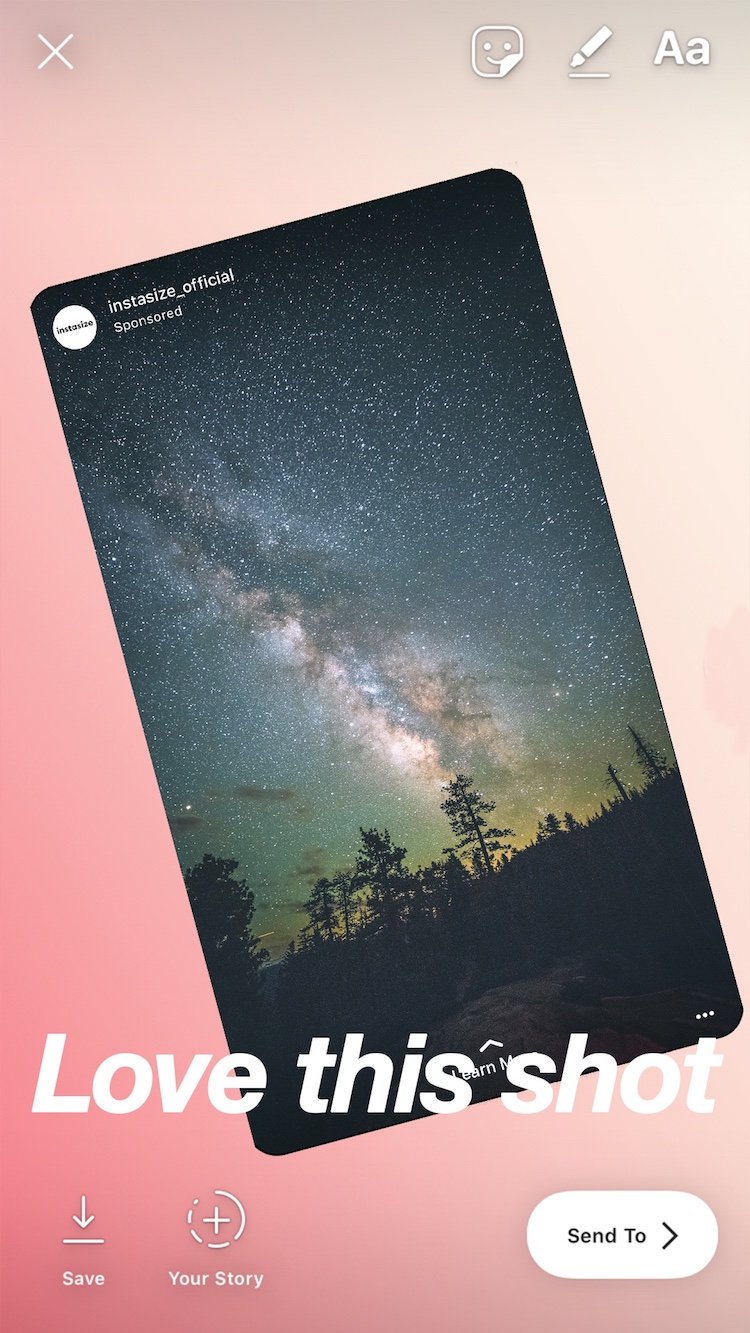
Turn two or three outtakes into a short photo sequence. Start with the published image, then show an alternate crop, a candid frame, or a behind-the-scenes shot. This gives one shoot more useful life without repeating the feed post exactly.
9. Post a meme.
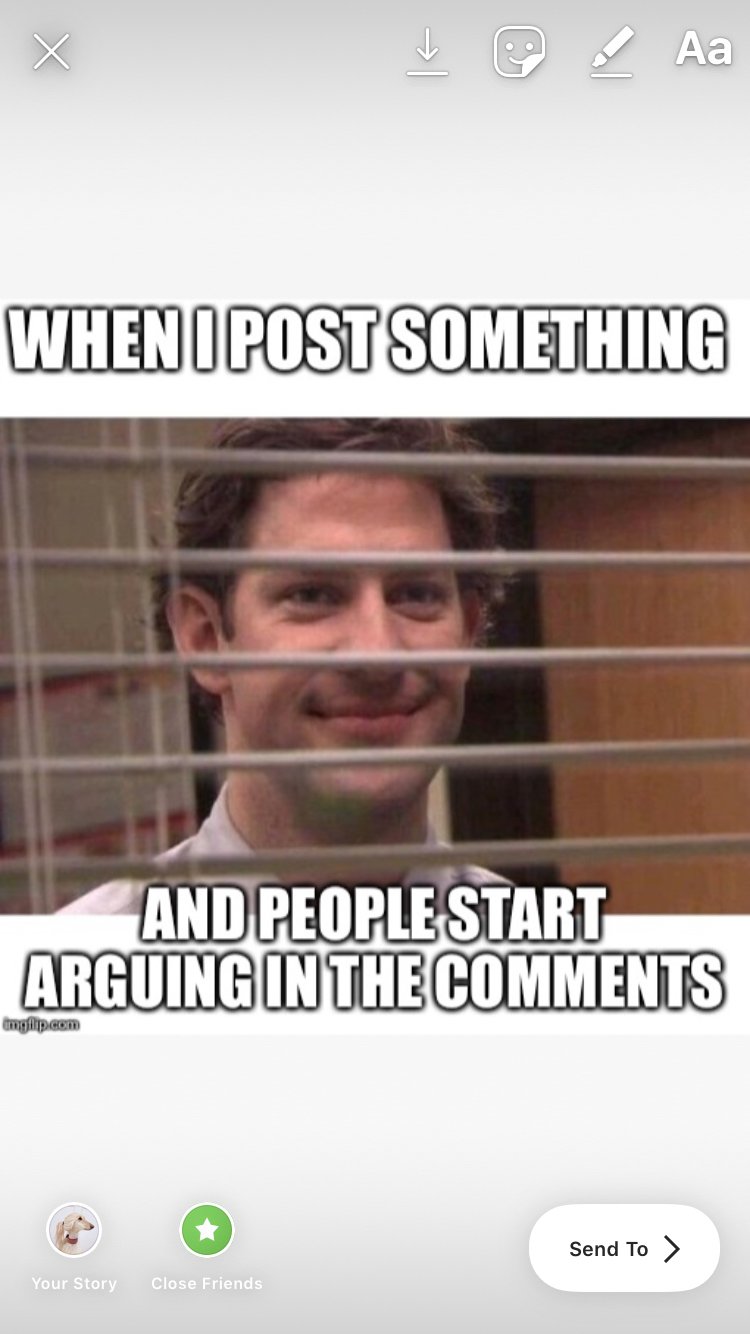
Use a reaction photo or a recognizable meme format that fits your usual topic. If you share someone else's post, use Instagram's sharing controls when available, credit the creator visibly, and avoid removing attribution.
10. Share a preview of a post or video.

Crop one compelling still from a new video, article, or feed post and explain what viewers will get after tapping. Add the appropriate mention or Link sticker instead of hiding the destination behind a vague “click here.”
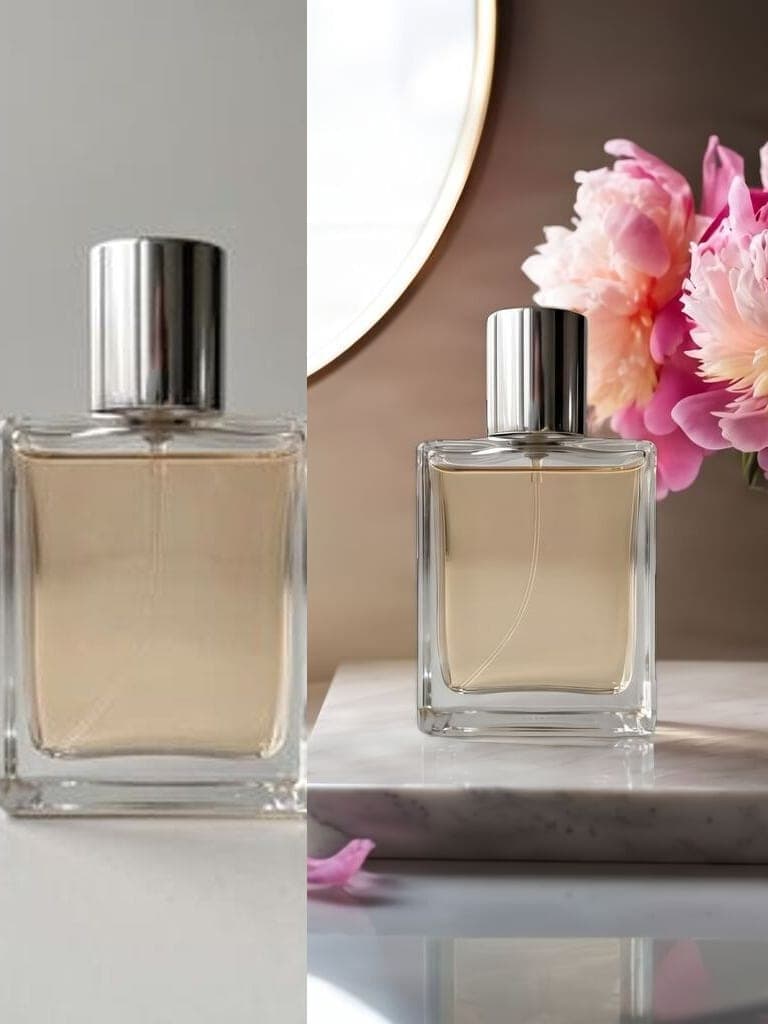
11. Get your followers to decide for you.
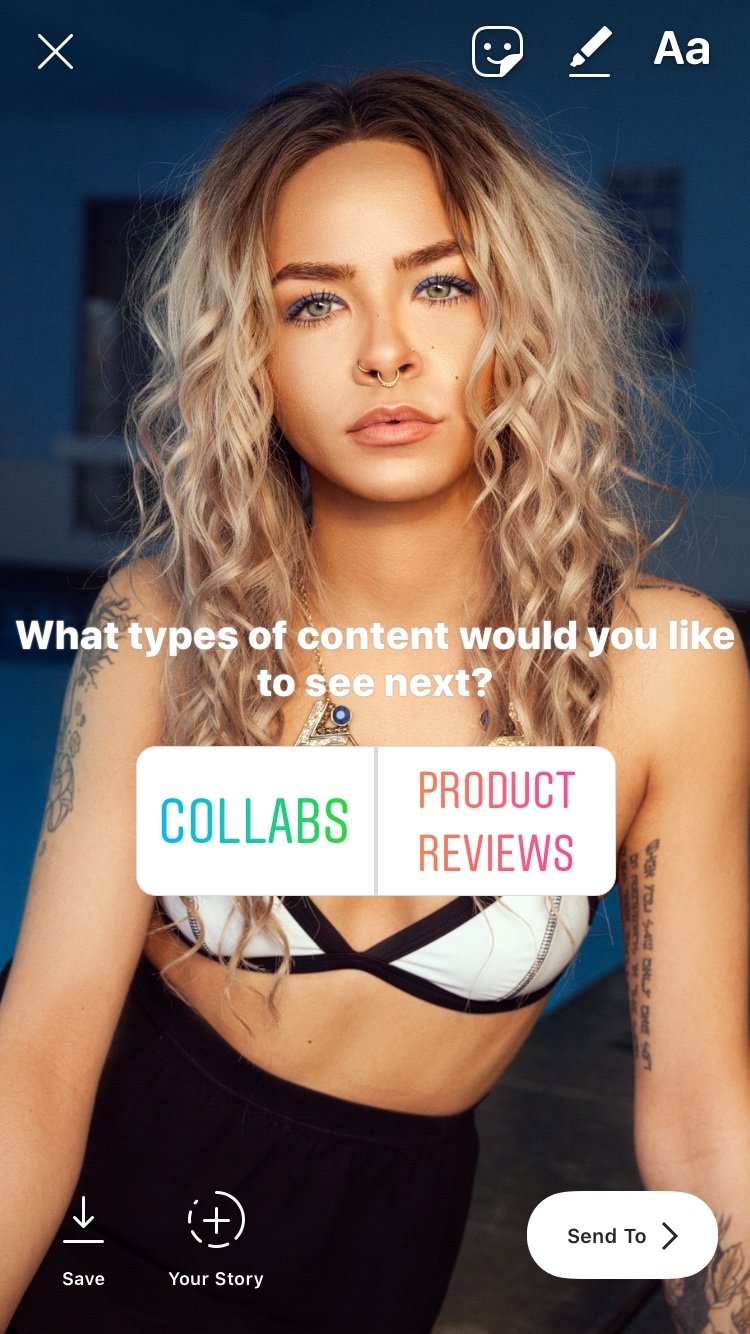
Place two choices in a split image—two outfits, edits, covers, or products—and add a poll sticker. Share the result later so participants see how their input was used.
12. Share valuable and relevant DMs.
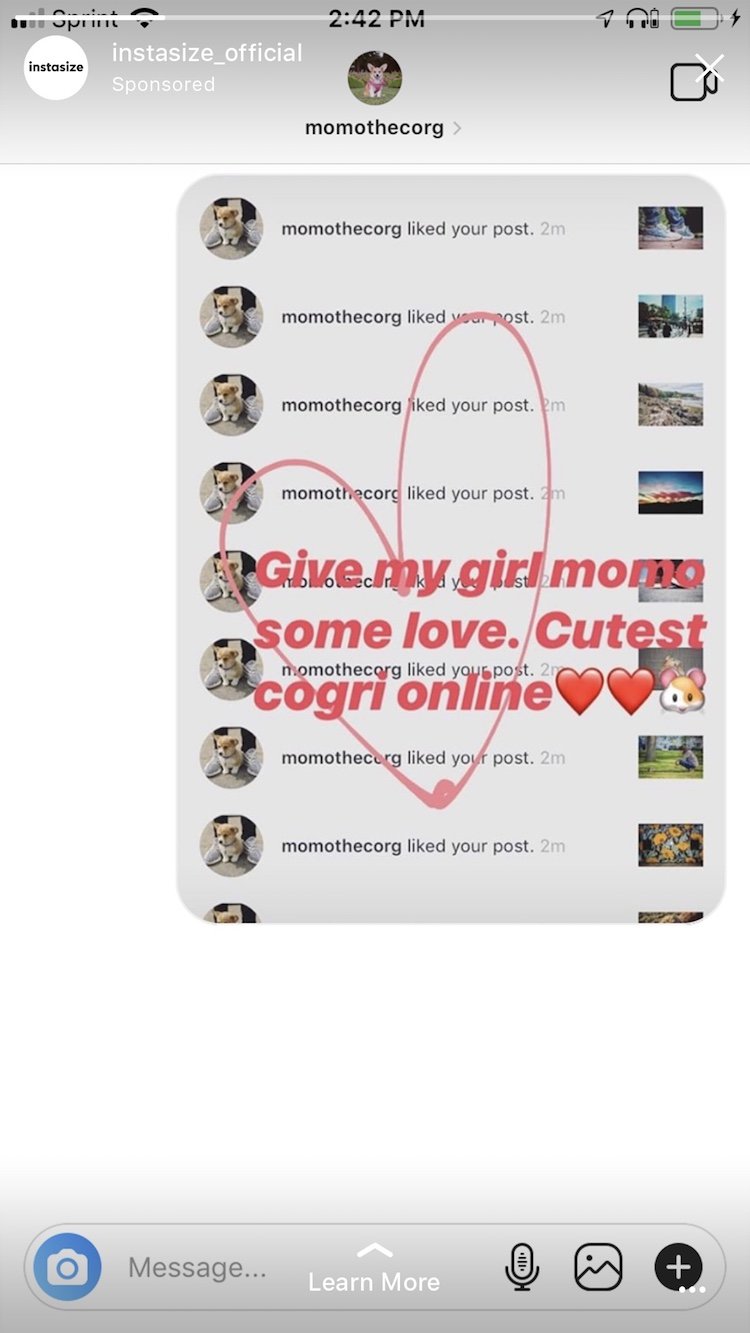
With the sender's permission, place a useful message or customer photo on a simple background and add context. Hide private information that is not needed, and tag the person only if they agreed to be identified.
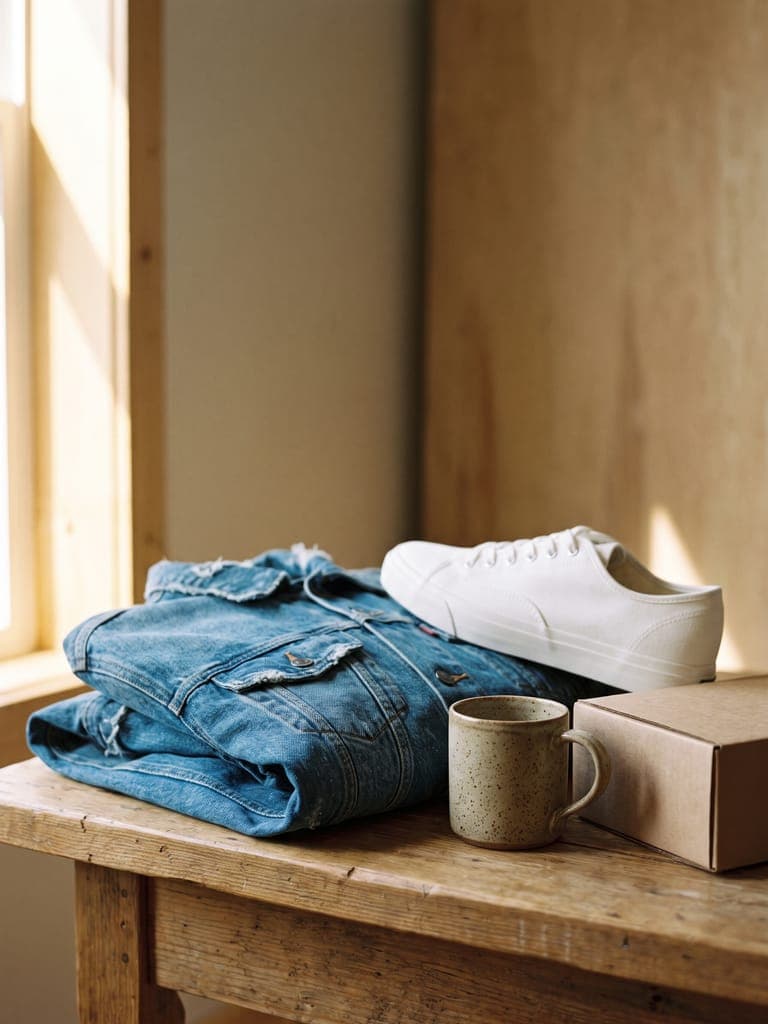
13. Post an unboxing!

An unboxing does not have to be a video. Photograph the closed package, the first reveal, and the final product as three consecutive frames. Keep the camera position and lighting consistent so the sequence feels intentional.
Start with the format that suits the photo you already have. A clean single-photo Story is usually stronger than a template filled with unnecessary decorations. Keep the subject inside the safe area, preview the frame before publishing, and use interactive stickers only when they help viewers understand or respond to the image.
Resize for Instagram Stories, free in your browser
Try it free