Product Photo Editor for Online Sellers
Cut out the product, pick a backdrop, add a shadow and download. Then size it for the marketplace or run the whole catalog through the batch editor.
A phone snapshot, edited for the listing
One original photo, one edit. The sneakers are cut out of a cluttered floor and placed on a clean field, so the listing shows the product and nothing else.
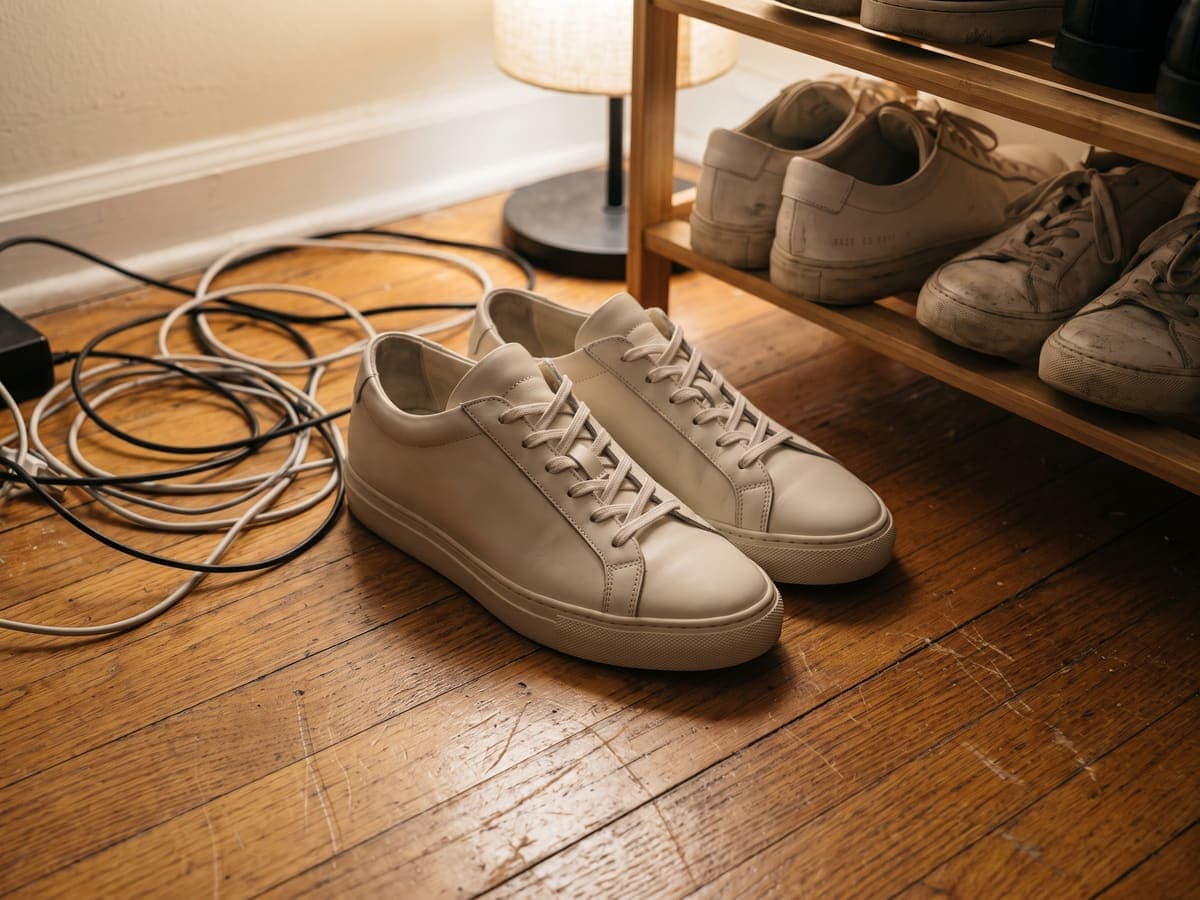
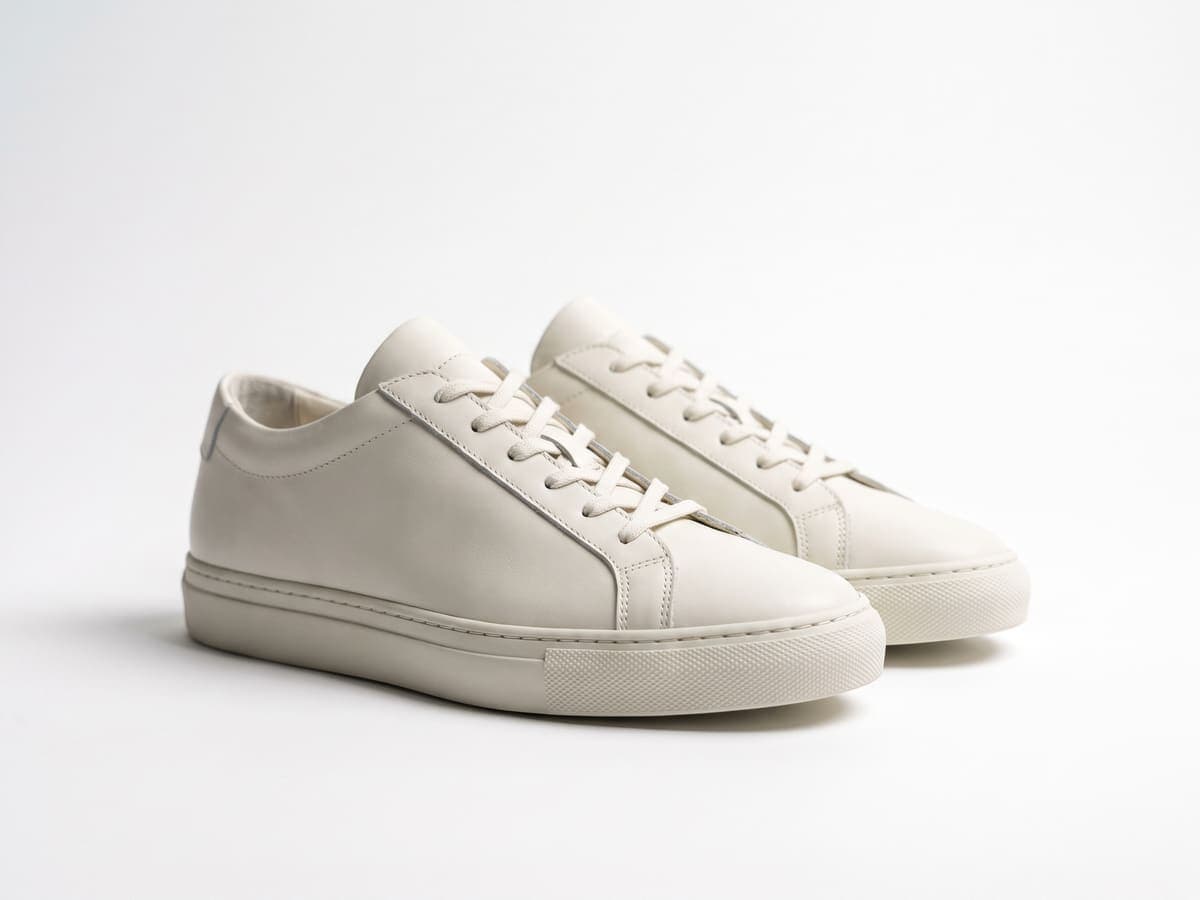
The four edits that matter on a product photo
Most listing photos do not need heavy retouching. They need four things done consistently, and the order matters.
- Background: remove the room and keep the product. This is the edit buyers notice first.
- Backdrop: white for most marketplaces, or a color or scene that suits the brand.
- Shadow: a soft contact shadow so the product sits on a surface instead of floating.
- Size: export at the dimensions the marketplace uses, so nothing is cropped or auto-resized badly.
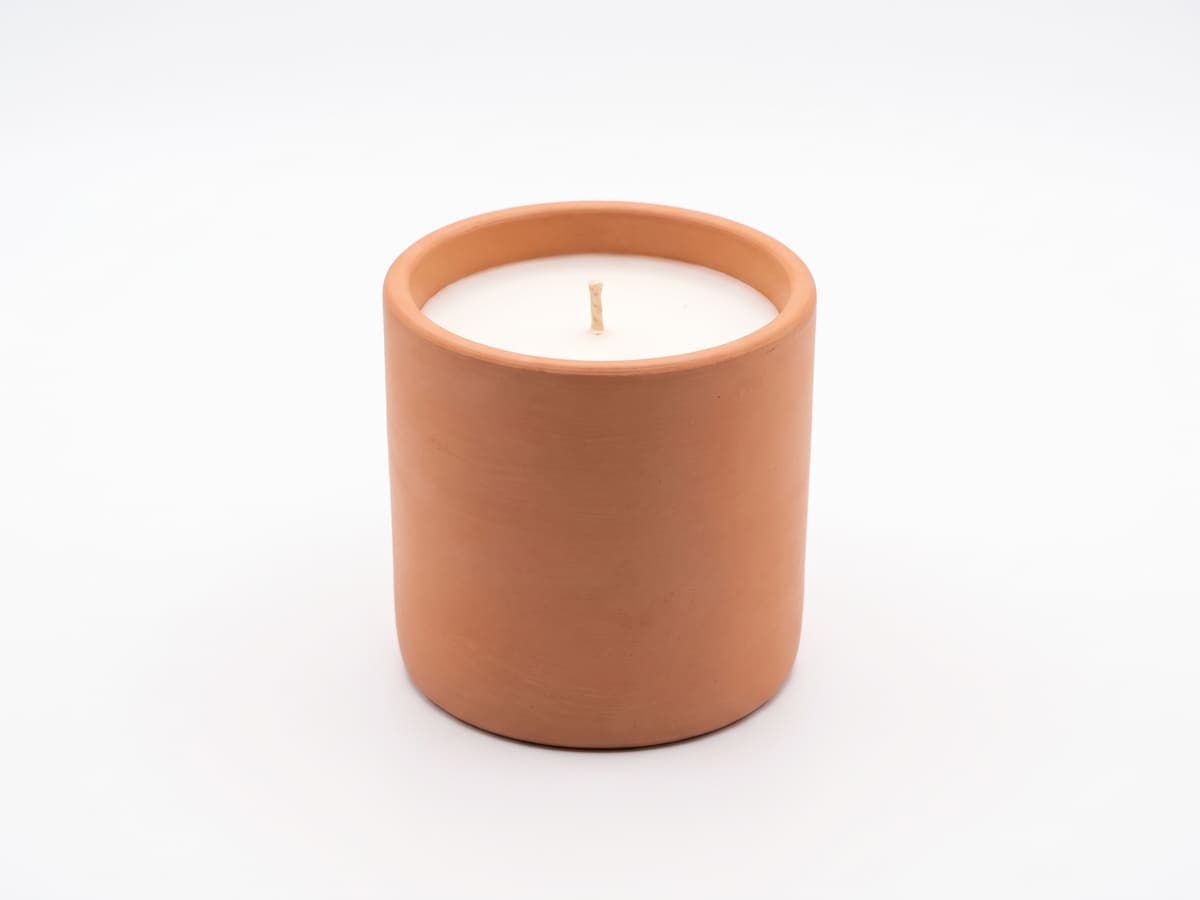
Same edit, different product
A candle shot on the sofa gets the identical treatment, so a shop with many items keeps one consistent look.

Fix what the cutout cannot
A dust speck, a price tag or a cable in frame is better removed than hidden. The object remover erases it and fills in the surface. If a photo is soft, the image upscaler can sharpen it and raise the resolution before you cut it out. Both are quicker than reshooting.
One product or two hundred
The editor above handles one photo at a time. When you have a whole shoot, the batch photo editor applies the same background, fill and size to up to 50 photos and returns a zip, so every SKU matches. Per-marketplace walkthroughs for Amazon, Etsy, eBay and Shopify are linked below.
How to edit a product photo online
- 1
Step 1: Upload the photo
Use the original, not a screenshot or a social post, so the cutout has full detail to work with.
- 2
Step 2: Remove the background
The product is isolated automatically. Zoom into corners, handles and straps to check the edge.
- 3
Step 3: Choose a backdrop and shadow
Pick white, a color, or an AI scene such as marble or wood, then add a Soft, Hard or Floating shadow.
- 4
Step 4: Download and size it
Download the result, then export at the marketplace size from the size guide, or send the whole set through the batch editor.
For listing photos, the edits that matter are background removal, a clean backdrop, a shadow and the right size. This editor does all four in the browser. Background removal is an AI feature included in the paid plans, and Pro starts with a free trial.