
White Background for Product Photos

Upload a product photo and it lands on pure white, ready to preview and download. Below: what each marketplace asks for and how to shoot so the edges come out clean.

From a kitchen counter to a catalog shot

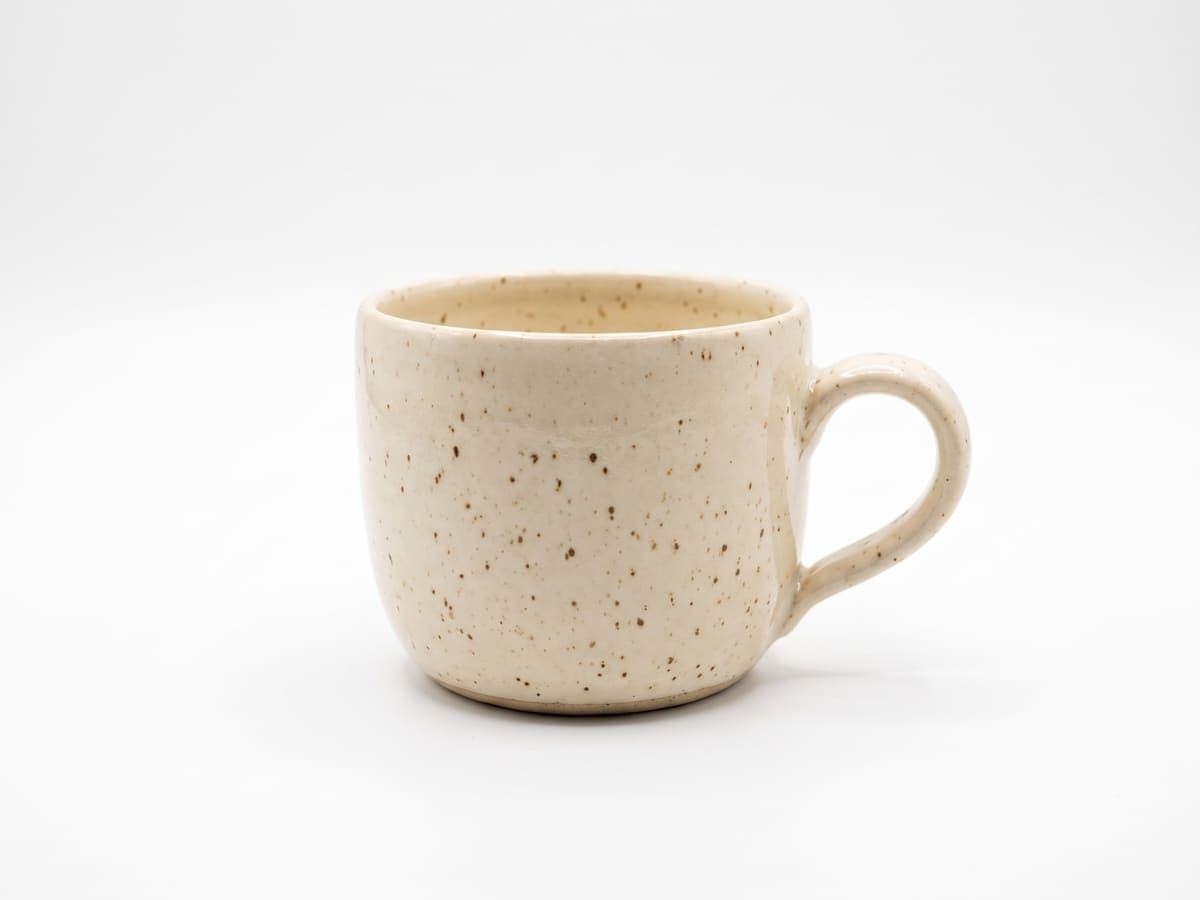
Same mug, same phone, no studio. The cutout and the white fill are the only change, so the product looks identical to what the buyer will receive.

A ceramic mug on a cluttered kitchen counter with a dish towel and fruit bowl behind it
Shot on the counter
The same ceramic mug alone on a pure white background
On pure white

What marketplaces ask for

White is a rule on some platforms and a safe default on the rest. These are the published requirements as of this page’s last update. Confirm the current policy in the source before you list.

Why sellers put products on white

A white background removes everything that is not the product. Buyers scrolling a search page compare items in a second or two, and a plain field makes color, shape and condition easy to judge. It also makes a catalog look like one store instead of fifty phone snapshots.

It is also the safest format to reuse. A white-background shot works as an Amazon main image, a Google Shopping feed image and a Shopify collection thumbnail without being re-edited for each.

One look across the whole catalog

Same white, same scale, same shadow. A set of listings that matches reads as one store, and it is what batch editing is for.

Six different products arranged in a grid, each on the same pure white background
Six products, one background

Shoot it so the cutout comes out clean

The tool separates the product from whatever is behind it. You can make that job easy before you press the shutter.

  • Put the product on a surface that contrasts with it: dark items on a light table, light items on something darker.
  • Shoot in soft window light, not direct sun. Hard shadows get read as part of the product.
  • Fill the frame. A product that takes up most of the photo keeps more detail along the edge.
  • Hold the phone level and square to the product so the shape is not distorted.
  • Keep glass, chrome and fur sharp. Zoom into those edges in the preview before you download.

Fixing the white halo and the floating look

Two things give away a rushed white-background edit. A pale fringe around the product shows up when the original backdrop was bright, and a product with no shadow looks pasted on. Check edges in the preview at full size, and add a soft shadow so the product sits on the surface. The product shadow page covers the three shadow styles and when each one is allowed.

How to make a white background for a product photo

  1. 1

    Step 1: Upload your product photo

    Pick a photo from your phone or computer. A sharp image with the product clearly separated from its surroundings gives the cleanest edge.

  2. 2

    Step 2: Let the background drop out

    The product is cut out and placed on pure white (#FFFFFF) automatically. Hold Show original to compare against the source.

  3. 3

    Step 3: Add a shadow if the marketplace allows it

    Choose Soft, Hard or Floating so the product looks grounded. Skip it if you need a flat cutout.

  4. 4

    Step 4: Download, then resize for the marketplace

    Download the JPG, then open the size guide for the marketplace you sell on to export at its exact dimensions.

FAQ

White Background for Product Photos FAQ

Can't find what you're looking for? Contact support

Upload the photo to the tool above. The product is cut out and placed on pure white, and you can preview the result and download it as a JPG with no watermark.