How to Make Photos Look Vintage or Retro (2026 Guide)
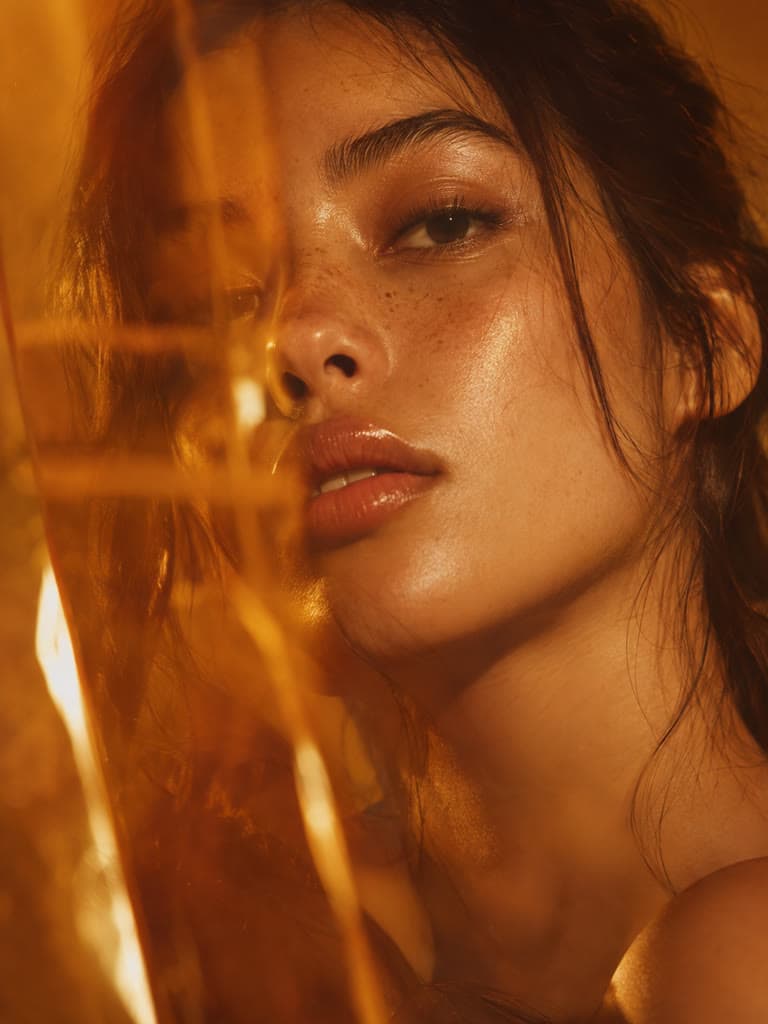
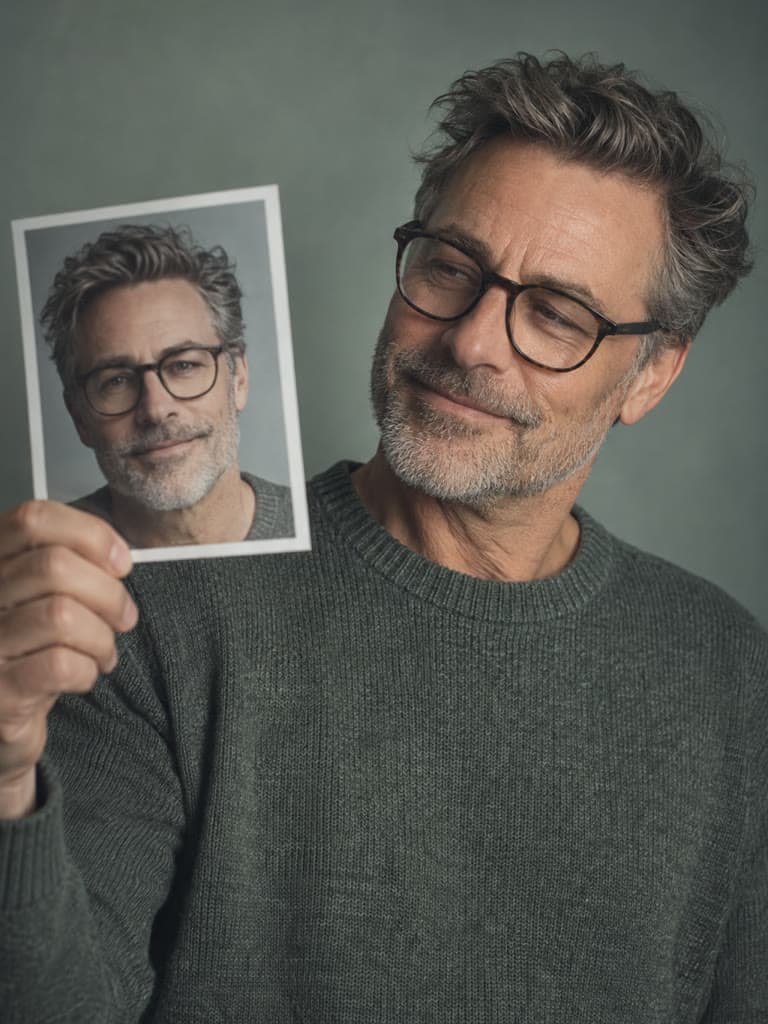
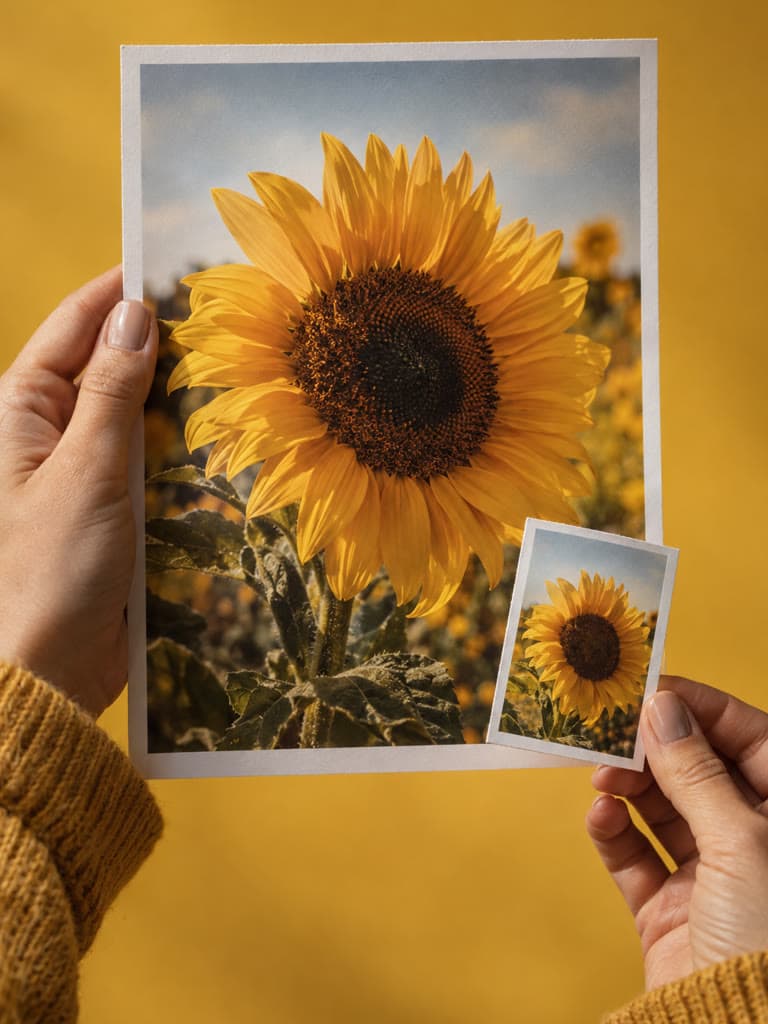
A vintage or retro look comes down to three things: a warm or faded color cast, softer contrast, and visible grain that mimics film. You can get there fast with a preset filter, or build the look manually if you want more control over the final result. Here's how to do both in the Instasize mobile app.
Start With a Retro Filter
The Instasize mobile app (iOS and Android) includes several filter presets built around film-era color casts:
- D2 — adds a warm, reddish-brown tone reminiscent of aged film prints.
- N3 — a darker, higher-contrast filter with a polaroid-style edge.
To apply one: open your photo in the app, tap the Filters tab, and browse or scroll through the library. Tap a filter to preview it, then use the intensity slider to dial the effect up or down — a lighter touch usually looks more natural than the filter at full strength.
Add Film Grain
Grain is what sells a vintage edit — it's the texture that separates a filtered photo from one that genuinely looks like it came off film. The detailed film grain texture tutorial shows how that treatment changes a photo. In the mobile app:
- Open the Adjustments panel.
- Select Grain.
- Move the slider until you see visible texture without it overpowering the photo.
Go easy here: too little grain won't read as vintage, but too much will look noisy rather than filmic, especially on photos that are already lower-resolution.
Fine-Tune Manually
If a preset filter doesn't nail the look you're after, adjust these settings directly:
- Saturation — pull it down to mute colors; vintage photos rarely look vivid.
- Contrast — lower it slightly for a flatter, "lo-fi" tonal range instead of deep blacks and bright highlights.
- Warmth — push it warmer for a nostalgic, sun-faded feel.
- Highlights — reducing highlights softens blown-out bright areas, which is common in older film photos.
- Vignette — a subtle dark edge draws the eye to the center and mimics the light falloff of older camera lenses.
- Grain — layer this in last, after your color adjustments, so you can judge the final texture accurately.
For a full film-negative treatment instead of a faded color grade, use the photo inverter workflow for photographers to reverse the image's colors and adjust the effect intensity.
Common Mistakes to Avoid
- Stacking grain and a heavy filter at full strength. The combination usually reads as messy rather than intentional — bring one or both down.
- Over-desaturating. A vintage look is muted, not black-and-white; keep enough color that skin tones and backgrounds still read naturally.
- Skipping the vignette but keeping high contrast. Without the softer edges, high-contrast photos tend to look modern and sharp rather than aged.
Try It Yourself
The mobile app's filters and Adjustments panel (including D2, N3, and Grain) give you the fastest path to a consistent vintage aesthetic across your feed, rather than editing each photo from scratch. If you're editing from a desktop, the web editor has its own online photo filter library.
FAQs
What's the fastest way to get a vintage look?
In the mobile app, apply a preset like D2 or N3, then add a light layer of grain from the Adjustments panel — that combination gets you most of the way there in under a minute.
Does adding grain reduce photo quality?
Grain adds visible texture on top of the image rather than removing detail, so it doesn't reduce resolution. Heavy grain can make a photo look noisier, but it isn't the same as quality loss from compression.
Can I apply a vintage filter to video, not just photos?
Yes — Instasize's filters, including the vintage and retro presets, apply to both photos and video.
Do I need a premium filter pack to get a vintage look?
No. Basic adjustments like saturation, contrast, warmth, and grain are enough to create a convincing vintage effect manually, even without a specific preset filter.
Why do my vintage edits look too dark or muddy?
Usually from lowering contrast and saturation too far at once. Bring contrast back up slightly and check that your highlights aren't fully crushed — a vintage look should be soft, not flat.