
How to Change Snapchat Username
Learn how to change your Snapchat username in just a few simple steps.
March 13, 2023
Resizing your image correctly before uploading to Instagram is the difference between a crisp, professional-looking post and a blurry, awkwardly cropped one. This guide covers every Instagram image size in 2026 — feed posts, Stories, Reels, carousels, and profile photos — plus a step-by-step process to resize without quality loss.
Instagram enforces specific aspect ratios and compresses anything outside its accepted range. Here are the current dimensions for every post type:
| Post Type | Dimensions | Aspect Ratio |
|---|---|---|
| Square | 1080 × 1080 px | 1:1 |
| Portrait | 1080 × 1350 px | 4:5 |
| Landscape | 1080 × 566 px | 1.91:1 |
Portrait (4:5) is the recommended default for single-image feed posts. It takes up more vertical screen space in the feed, which means more visibility before a user scrolls past.
The minimum width Instagram accepts is 320 pixels. The maximum display width is 1080 pixels. If you upload a wider image, Instagram shrinks it down to 1080px for display — which is fine. If you upload narrower than 320px, Instagram upscales it and the result looks soft.
Reels that fall outside the 9:16 ratio get pillarboxed or letterboxed with blurred background fill. Upload at the exact 9:16 ratio to avoid this.
Stories use the same 9:16 vertical format as Reels. If you upload a landscape or square image to Stories, Instagram adds blurred letterboxing around it. Resize to 1080 × 1920 first to fill the screen edge-to-edge.
Carousels follow the same feed dimensions as single posts. The important rule: all images in a carousel are displayed at the aspect ratio of the first image. If the first photo is portrait (4:5), every subsequent image gets cropped to 4:5 whether you intended that or not.
Set your first image intentionally. If you're mixing landscape and portrait content, crop everything to a consistent ratio before building the carousel.
Profile photos are displayed as circles, so the corners get trimmed. Center your face or logo inside the frame and leave a margin around the edges so nothing important gets cut off.
DM images display at their native aspect ratio with a maximum width of 1080 px. There is no strict crop applied, but very tall or very wide images may get a tap-to-expand treatment in the chat thread.
Even when you upload at 1080 pixels wide, Instagram recompresses every image using its own JPEG compression algorithm. Images uploaded at a lower quality setting or in a format it doesn't handle well (like a high-bit-depth TIFF) can lose visible quality after compression.
How to minimize compression damage:
Instasize is built specifically for Instagram dimensions and handles the resizing and export in one workflow.
Instagram lets you adjust the crop after you select a photo from your camera roll:
The limitation: Instagram only offers a few aspect ratio options and you can't resize to exact pixel dimensions inside the app. For precise control — especially for carousels or when your source image isn't close to an Instagram-friendly ratio — resize in Instasize first.
This usually means one of two things:
Instagram applies a crop when your image's aspect ratio falls outside its accepted range (roughly 1.91:1 to 4:5). A very wide panorama or a very tall photo both get cropped. The fix is to resize to one of the accepted aspect ratios before uploading — or add white/blurred borders to pad it out without cropping the content.
By default, Instagram sometimes defaults to square (1:1) cropping on portrait images. After tapping the crop icon, explicitly select the 4:5 (portrait) option before posting.
Instagram converts images to sRGB. If your photo was edited in a wide-gamut color space (Adobe RGB, P3), save a copy converted to sRGB before uploading. The original colors will be preserved.
Instagram accepts the following file formats:
Maximum file size: 8 MB for feed images, 30 MB for Stories images.
| Format | Width | Height | Ratio |
|---|---|---|---|
| Feed — Square | 1080 | 1080 | 1:1 |
| Feed — Portrait (recommended) | 1080 | 1350 | 4:5 |
| Feed — Landscape | 1080 | 566 | 1.91:1 |
| Stories | 1080 | 1920 | 9:16 |
| Reels | 1080 | 1920 | 9:16 |
| Profile Photo (upload) | 320+ | 320+ | 1:1 |
| Carousel (follows first image) | 1080 | varies | varies |
What is the best image size for Instagram in 2026?
For feed posts, 1080 × 1350 pixels (4:5 portrait) takes up the most vertical space in the feed, which maximizes visibility. For Stories and Reels, use 1080 × 1920 pixels (9:16).
Can I upload a higher resolution image than 1080px to Instagram?
Yes, you can upload up to 2048px wide. Instagram stores the full resolution for zoom but displays at 1080px. Uploading larger doesn't improve the visible quality, but it gives Instagram more to work with if the aspect ratio requires any cropping.
Does resizing reduce image quality?
Resizing itself doesn't reduce quality if you're downscaling (going smaller). Upscaling — making an image larger than its original size — always reduces sharpness. Always start with the highest-resolution version of your image and resize down to 1080px.
What happens if I upload a square image to Instagram Stories?
Instagram adds a blurred version of your image as the background and centers your square photo in the middle of the 9:16 frame. If you want to fill the screen edge-to-edge, resize your image to 1080 × 1920 before uploading.
How do I resize multiple photos at once for Instagram?
Instasize supports batch resizing: upload multiple images, select the target Instagram dimension, and download all resized versions in one go. This is useful for preparing carousel posts where every image needs to match the same aspect ratio.
Does Instagram crop profile photos into a circle?
Yes. Instagram always displays profile photos as circles. The corners of your 1:1 square image are trimmed. Center your face or logo in the frame and leave a margin around the edges so nothing important sits at a corner.
What is the maximum file size for an Instagram image?
The maximum is 8 MB for feed images and 30 MB for Stories images. Most JPEG photos from a smartphone or camera will be well under this limit after resizing to 1080px wide.
How do I keep text sharp on Instagram graphics?
Export graphics (anything with text or flat-color elements) as PNG rather than JPEG. JPEG compression blurs sharp edges; PNG doesn't. If Instagram's automatic PNG-to-JPEG conversion degrades quality noticeably, increase the pixel dimensions of your graphic to 1080 × 1080 or 1080 × 1350 at a higher PPI before exporting.
Discover the latest expert tips and tricks on mastering social media strategies, honing your photing editing skills, and unleashing your creativity
Learn how to change your Snapchat username in just a few simple steps.
Learn how to add music to YouTube Shorts effortlessly. Follow this simple guide to enhance your Shorts with background tunes.
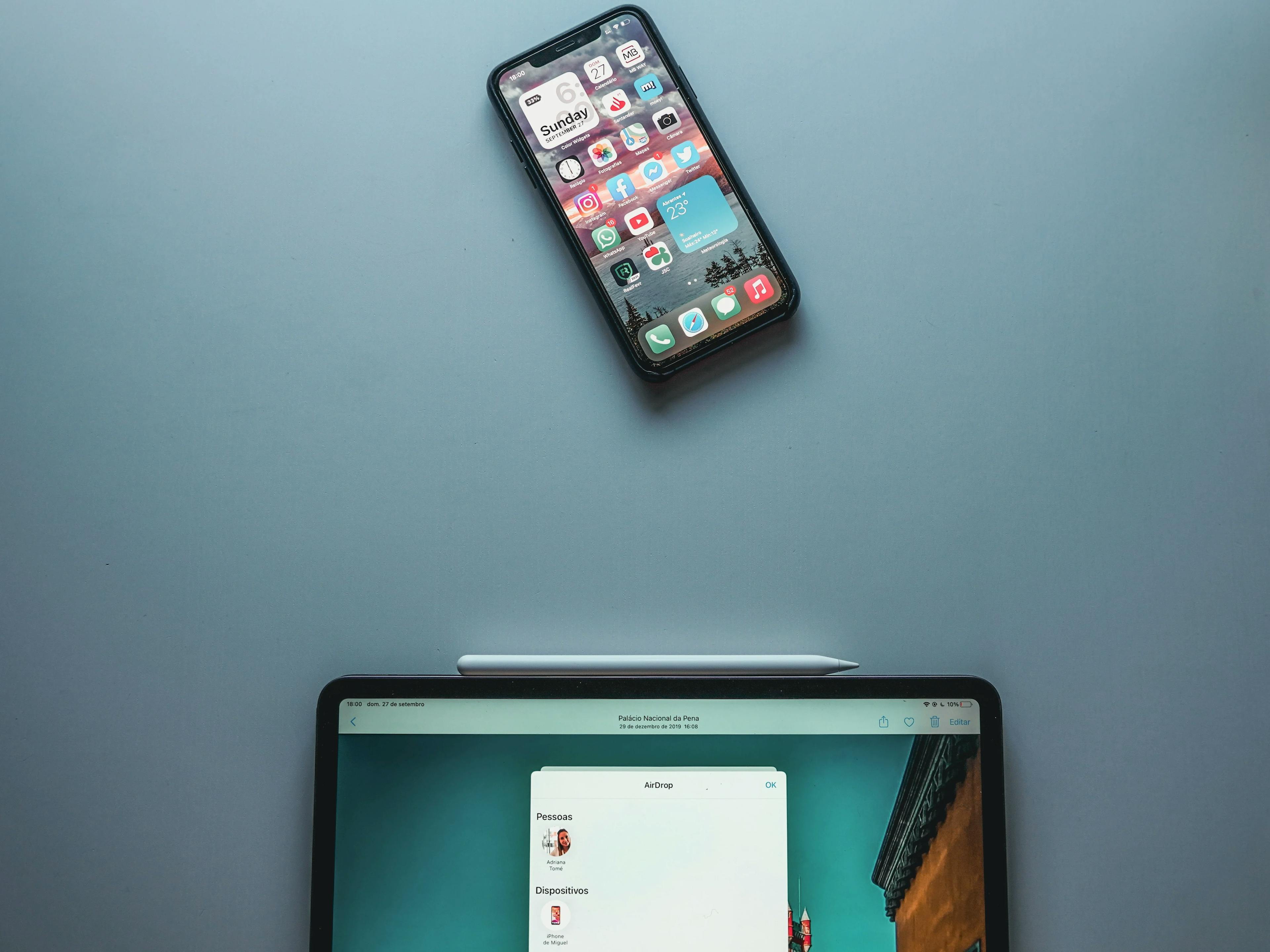
Learn the step-by-step process for airdropping photos from your Apple devices with ease.
Discover the ins and outs of managing multiple Etsy shops. Learn how you can have more than one Etsy shop and the best practices to keep them thriving.
Learn everything about the removal process from tools, image selection, to overcoming common challenges, and knowledge to elevate your background removal capabilities.
Discover how Snapchat works and how you can use its unique features to connect with friends and followers. From snap streaks to filters, learn everything you need to know about this popular social media app.
Learn how to resize an image quickly and easily with these simple steps. Discover the best tools for image resizing, including Instasize for all your resizing needs.
Discover how to increase the DPI of an image with simple steps. Learn about different tools and methods to enhance your image quality. Instasize offers easy solutions for all your image resizing and optimization needs.
Discover the top methods to increase the resolution of an image. Learn practical tips and find out how tools like Instasize can help you easily achieve high-quality results.
Learn how to make an image smaller with simple steps. Optimize your images without losing quality using Instasize, available on iOS, Android, and Web.
Learn how to resize photos on iPhone without cropping. Discover quick and easy ways to resize your images without losing any part of the photo.
Learn how to make an image square with simple steps. Discover tools and methods for cropping, resizing, and optimizing images with Instasize.
Put these tips into practice with our free tools, hand-picked to match what you just read
Resize image to any size with our free online image resizer. Pixel-perfect presets for Instagram, TikTok, YouTube and more. No signup, no quality loss.
Free online image size converter. Resize a photo to exact pixel dimensions (width x height) in JPG, PNG, or WebP. Need a target file size in KB or a format change? We point you to the right tool. No signup.
Convert images without compromising quality. Our image converter tool supports JPG, PNG, WEBP, and more. Convert your images instantly!
Remove backgrounds from photos in seconds. Get clean cutouts with transparent or solid backgrounds. Free, no watermarks.